


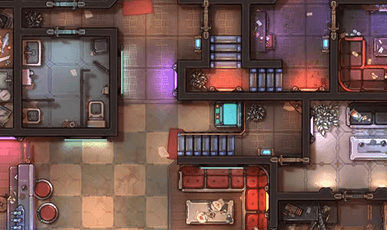


Attention, Foundry users! The Czepeku Universe module puts our full library of fantasy and sci-fi battlemaps and scenes right into Foundry VTT, ready to browse and import with a single click.
In this article, we'll show you how to set up and use the module, step-by-step.
Please note that this module requires connection to an active Czepeku website subscription at the Premium Tier.
Non-members and Patreon subscribers will not be able to use this module.
Curious about our website subscriptions? Check out our article, Everything You Need To Know About Czepeku Subscriptions.
Step 1: Install the Module
There are two ways to install the module.
Option A - Foundry Add-on Module Browser (recommended)
- Open FoundryVTT and click on the Add-on Modules tab
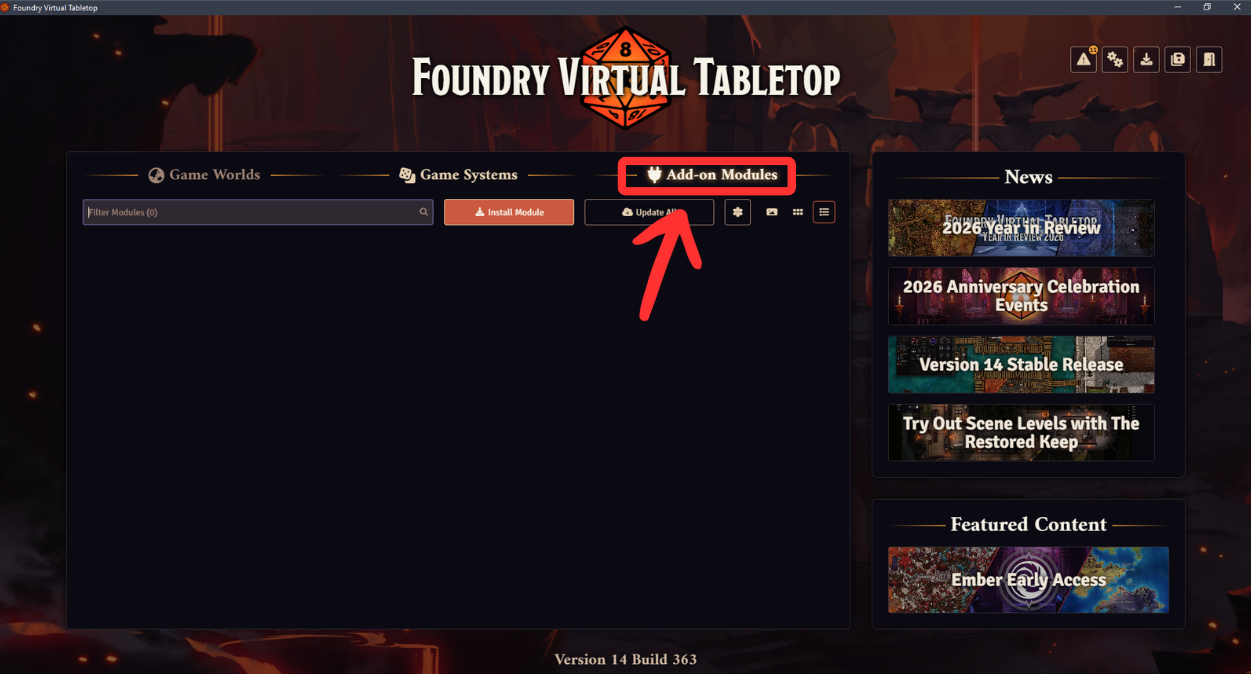
- Click on Install Module
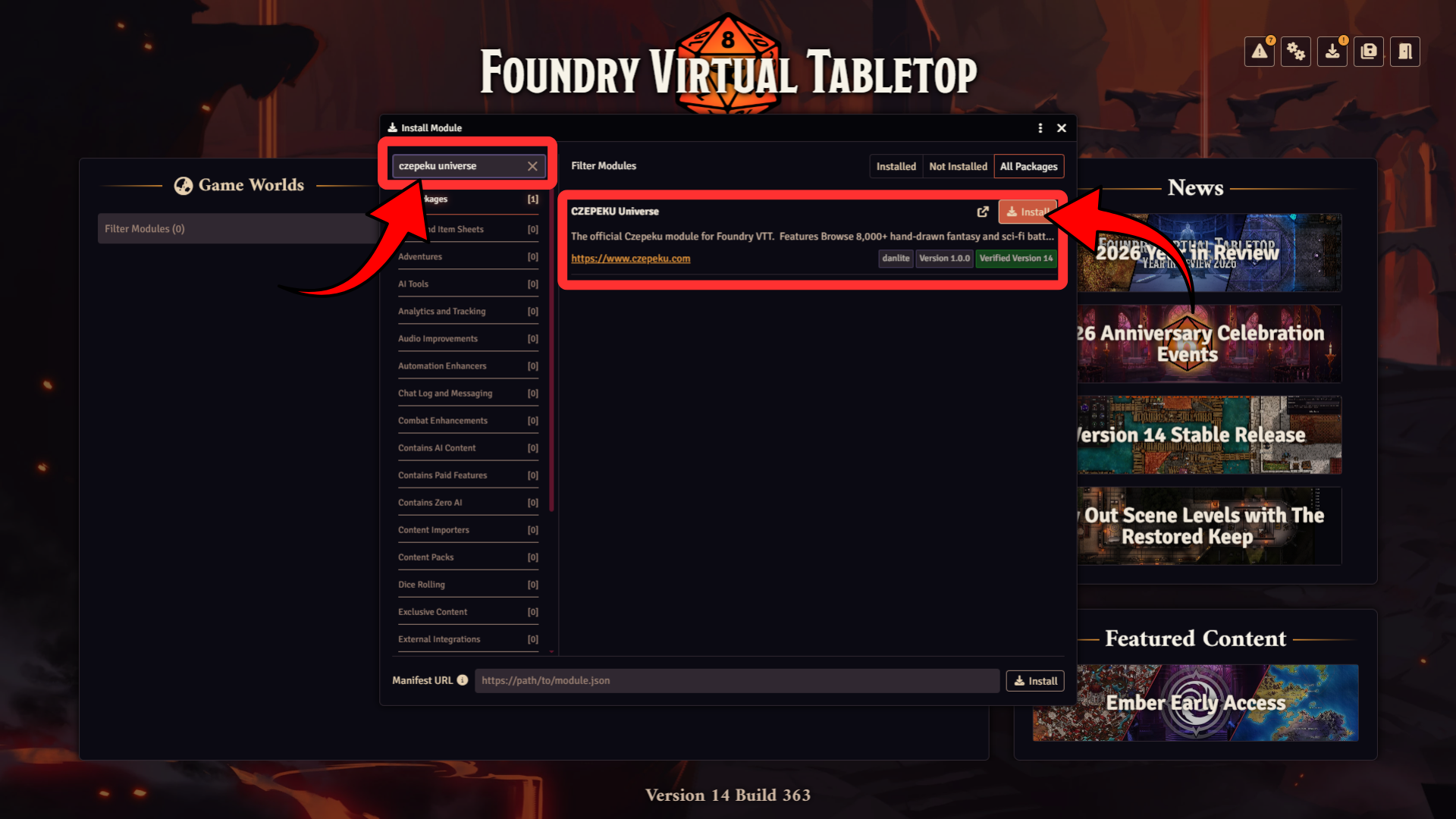
- Search for “Czepeku Universe” in the search bar
- Click the “Install” button next to the module that appears
Option B - Manifest URL
If you’re having trouble finding it in the browser, you can also install it directly via manifest URL instead.
- Open FoundryVTT and click on the Add-on Modules tab
- Click on Install Module
- Paste “https://www.czepeku.com/fvtt-module.json” into the Manifest URL box at the bottom of the window
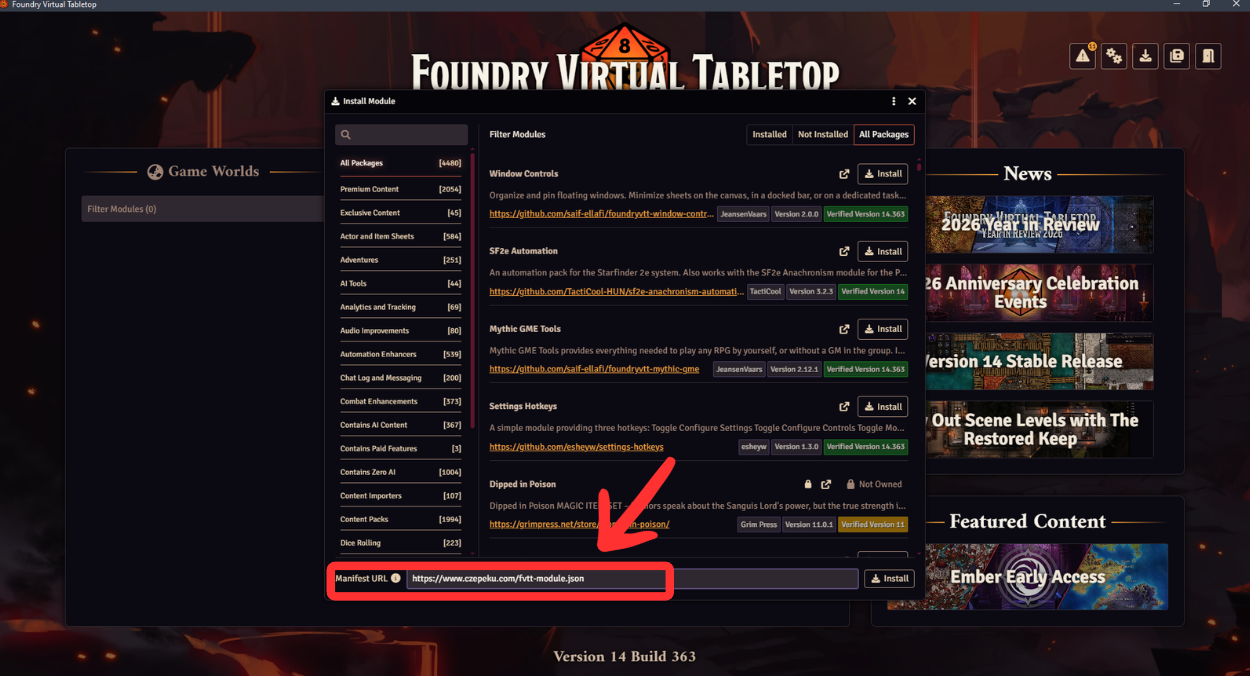
- Click “Install”
Step 2: Enable the Module
- Open your Foundry world as the Game Master
- Go to the Settings tab in the right window, and click Module Management.
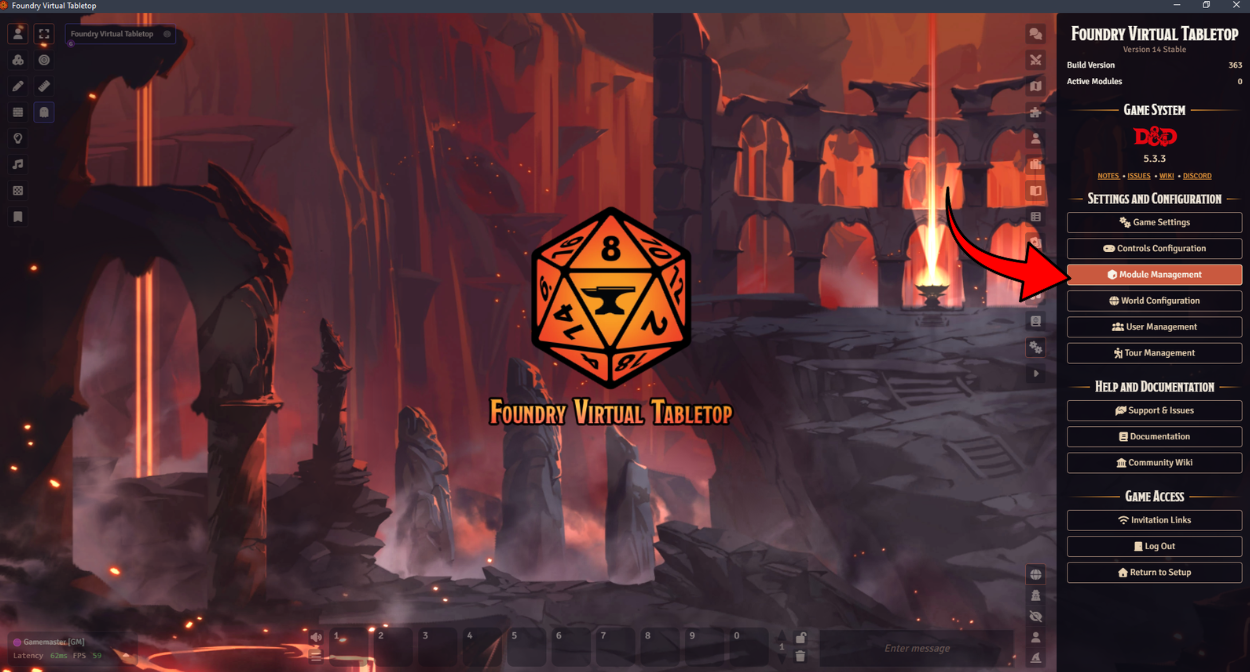
- Find Czepeku Universe in the list and check the box next to it.
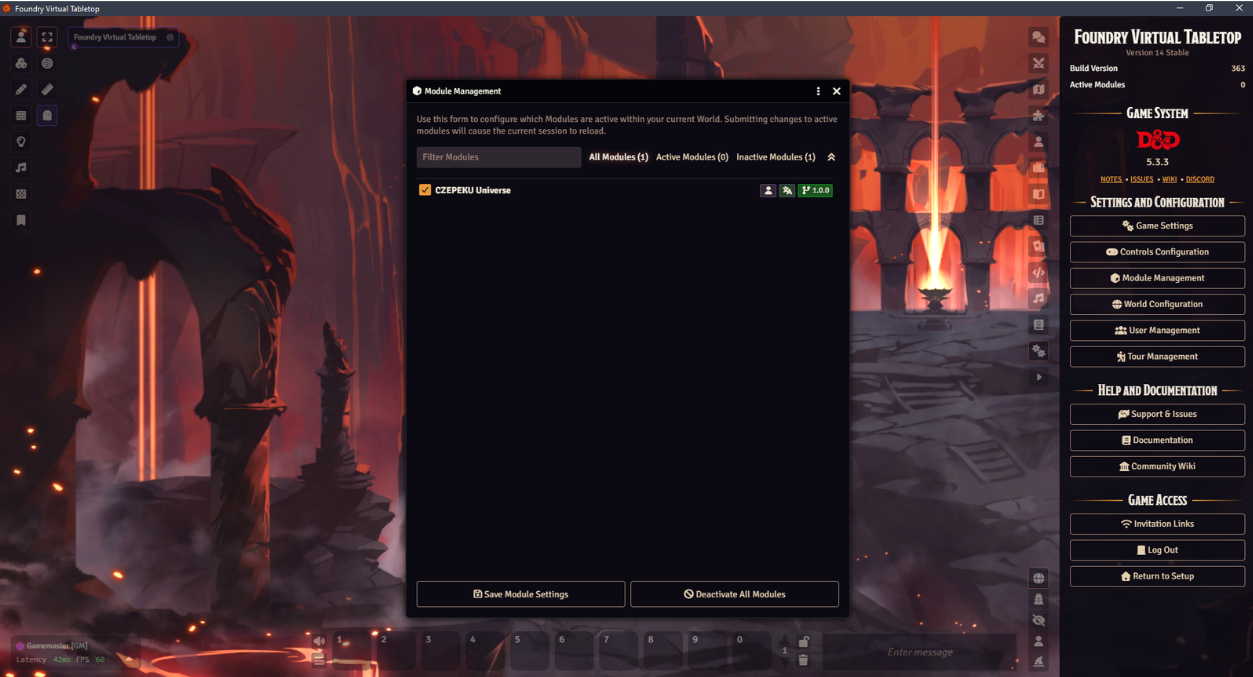
- Click on Save Module Settings.
Step 3: Link Your Czepeku Account
Once the module is enabled, you’ll see the Czepeku button in the left sidebar—look for the cat and shark icon.
- Click the Czepeku button to expand the sidebar
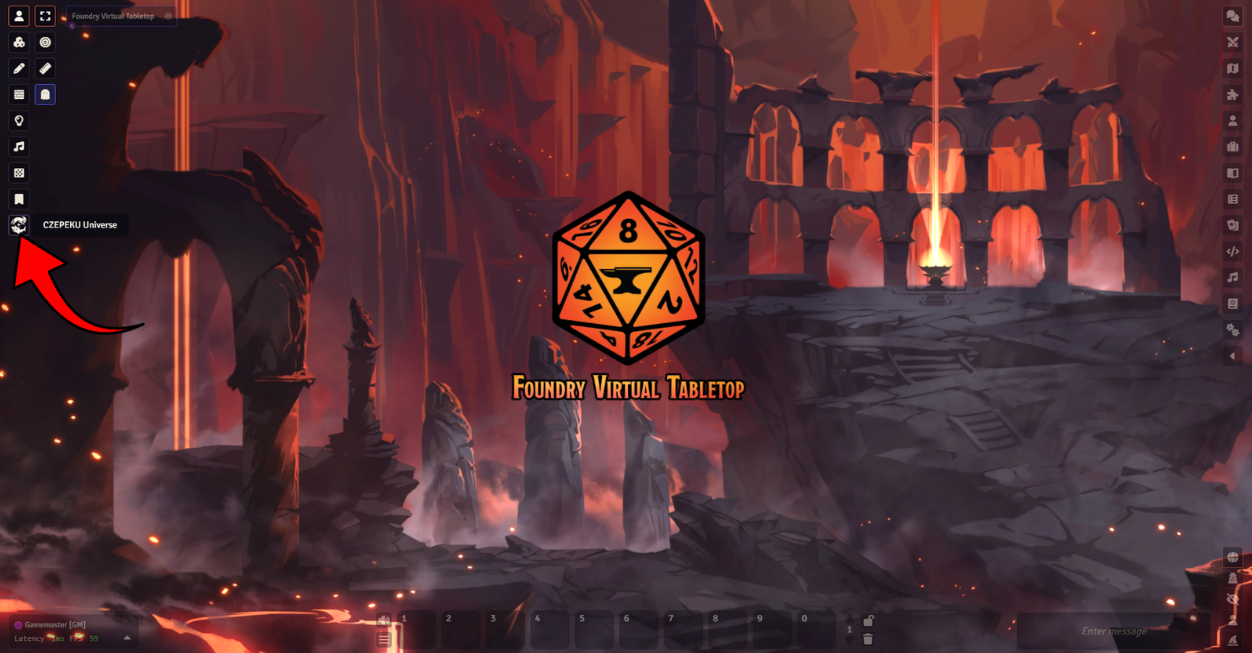
- Click the key icon to link your Czepeku account
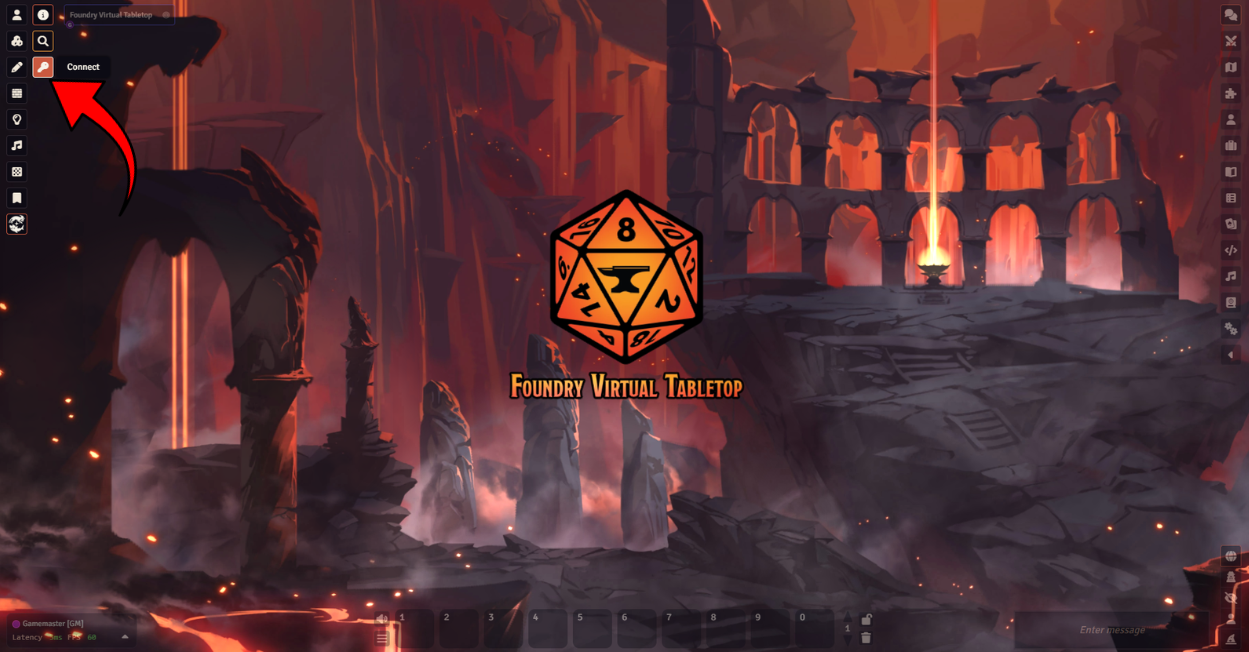
- Log in with your Czepeku website credentials
Step 4: Browse and Import Maps
- Click the magnifying glass icon to open the library
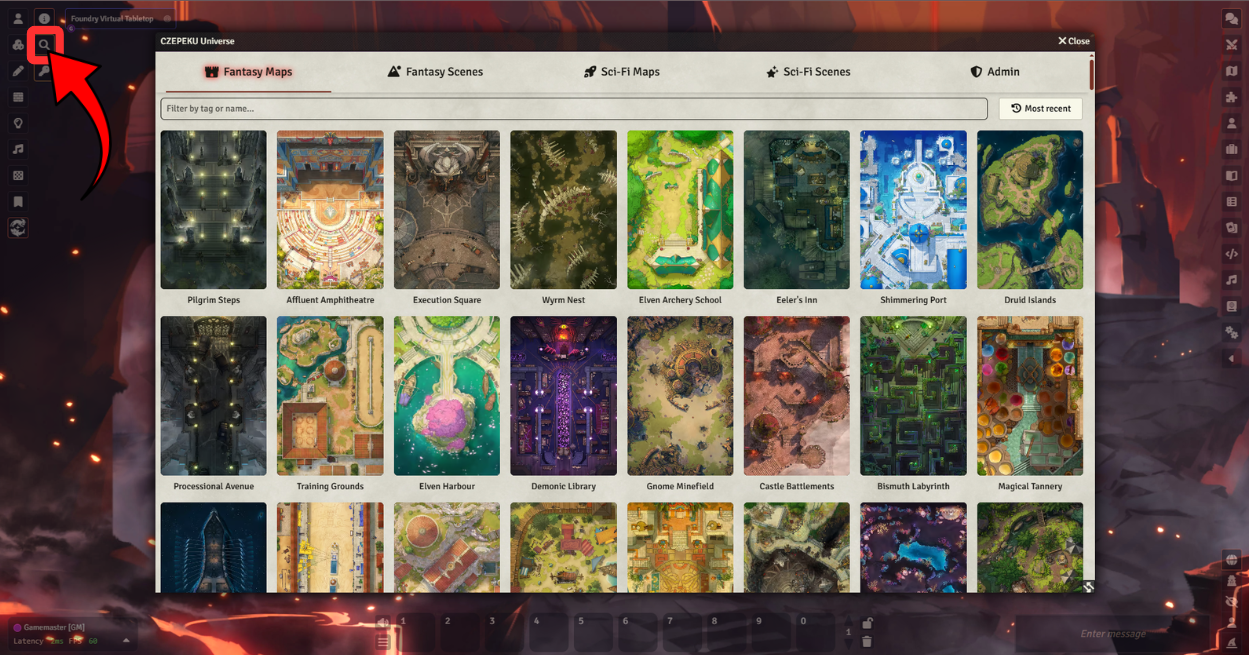
- You’ll now have access to all the maps, scenes, and assets included in your subscription.
- Sort by alphabetical order or most recent, or filter by tags and map name to find what you need.
- Click on any map to see all of its available variations
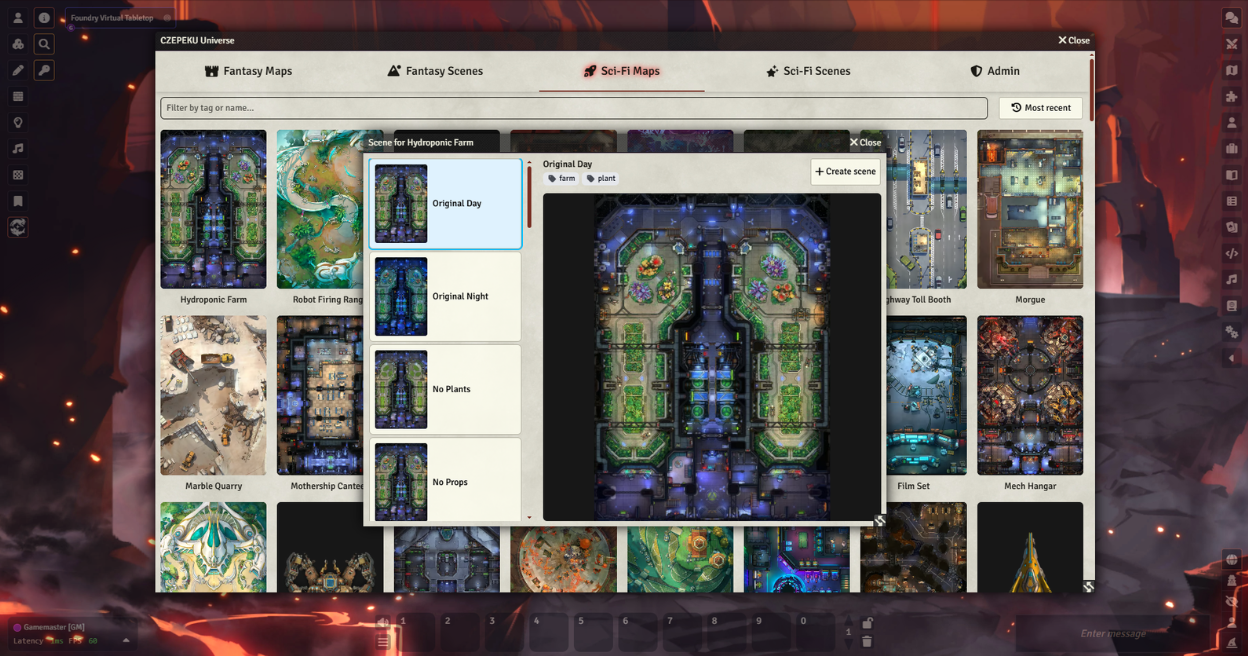
- Click Create Scene to import it directly into your Foundry world as a ready-to-use scene, complete with walls and lighting already set up.
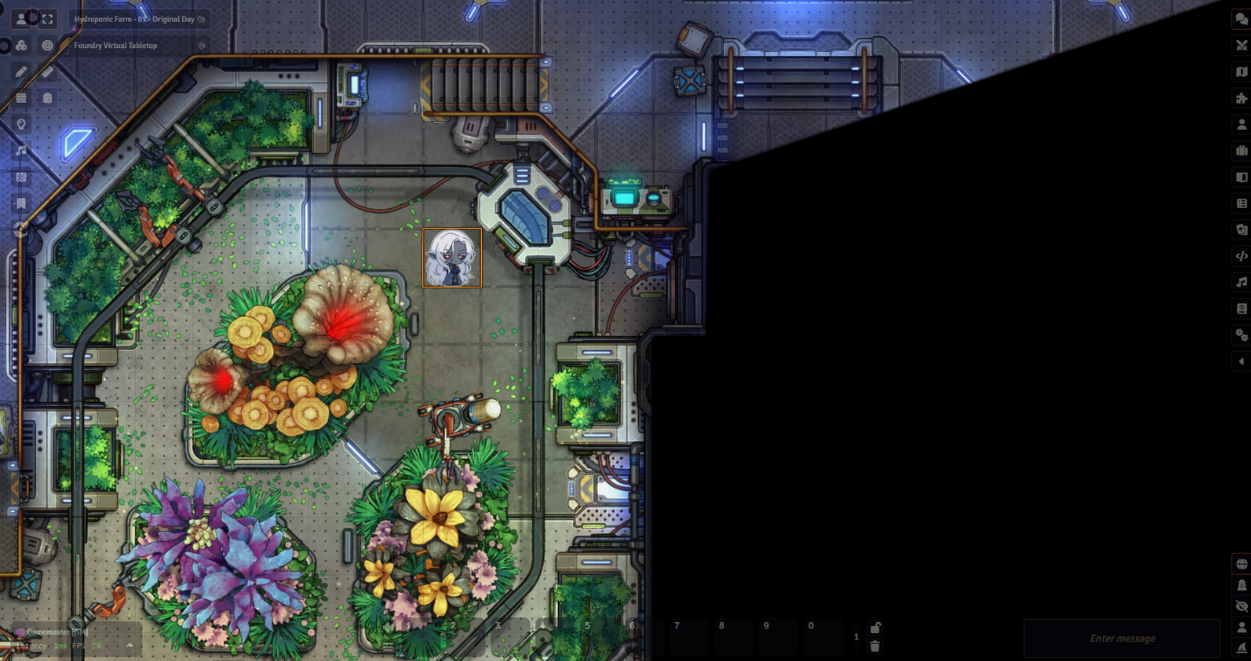
We’re actively working on getting all maps fully set up with Foundry-ready files. Some variations may currently appear greyed out, but we’re adding to the library regularly until every map in the library is covered!
Something Didn’t Work?
Head to the #VTT-discussion channel on our Discord—our community is always happy to help with any questions. You can also reach us directly at support@czepeku.com!