

What is Architect?
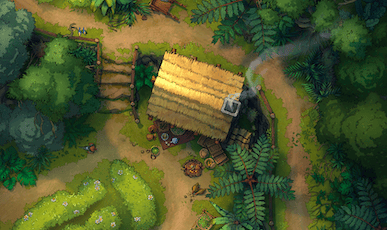
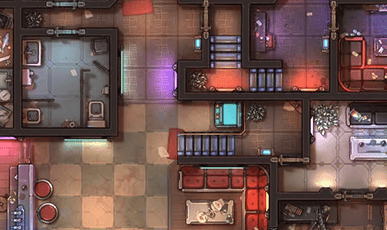
Architect is Czepeku’s mapmaking tool, built to help you piece together custom battlemaps room by room, using the same hand-drawn art our maps are known for.
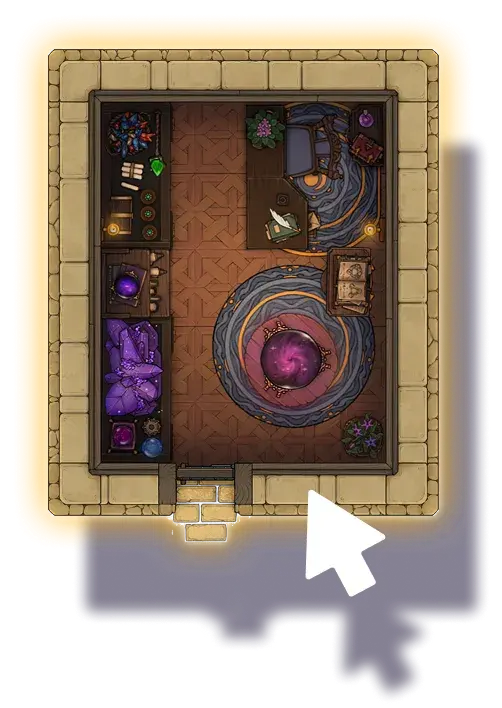
Architect works for creators of all kinds.
If you just need something quick, drag in pre-built rooms and drop them straight onto your map—you’ll still end up with a map that looks polished and professional.
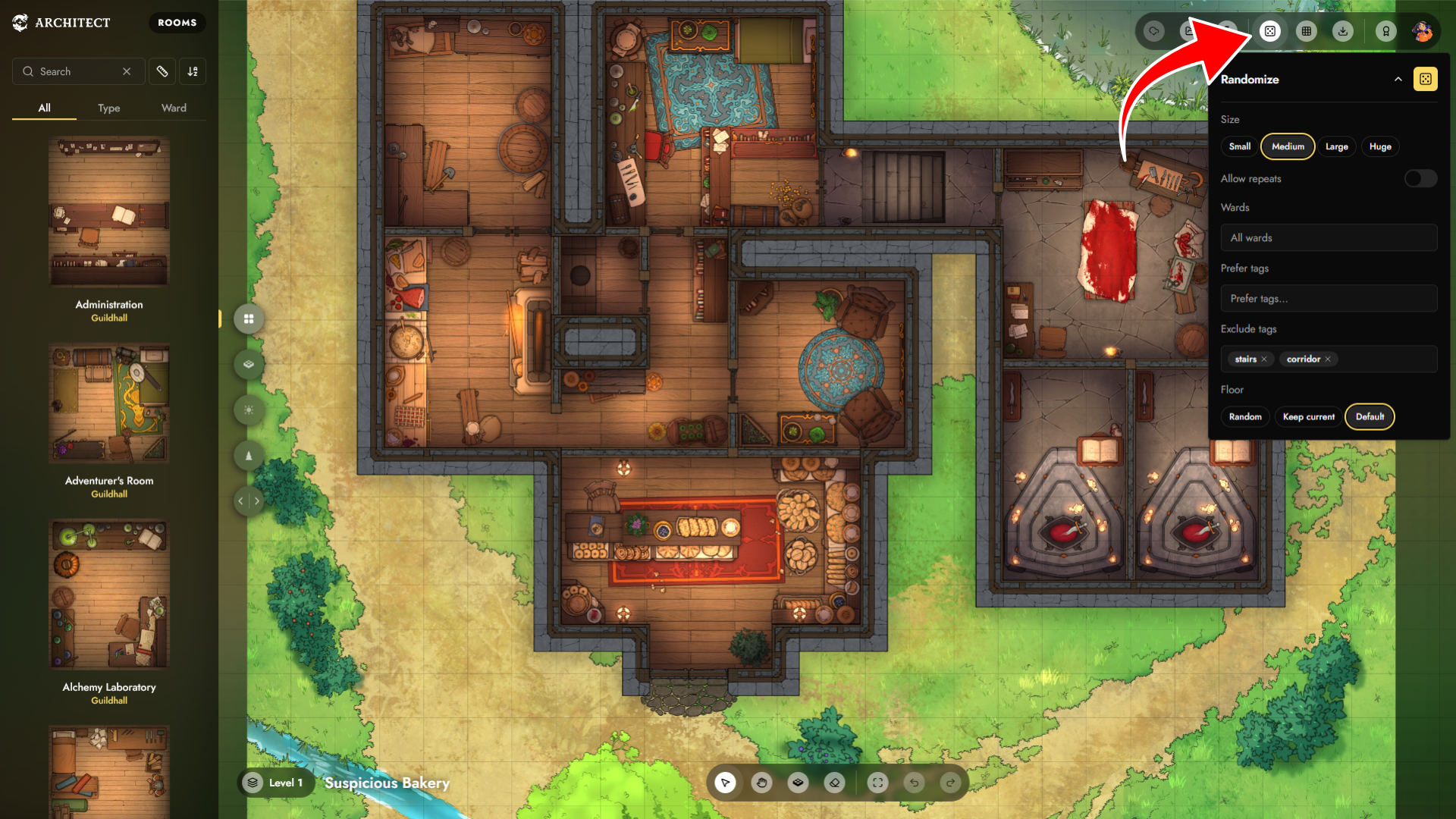
If you're having trouble with a blank page, use the "Randomize" feature to get started. Then, edit and adjust to your liking!
If you’re the type who likes to get hands-on with every detail, there’s also plenty to explore: edit rooms, search by shape to fit existing buildings, and fine-tune floors, walls, and lighting until it’s exactly right. (And down the line, expect even more to tinker with, like multiple floors and prop editing.)
As with any good tool, there’s a lot of ground to cover! So here’s everything you need to know to get started.
How to Get to Architect
Click here to open Architect and get to building right in your browser.
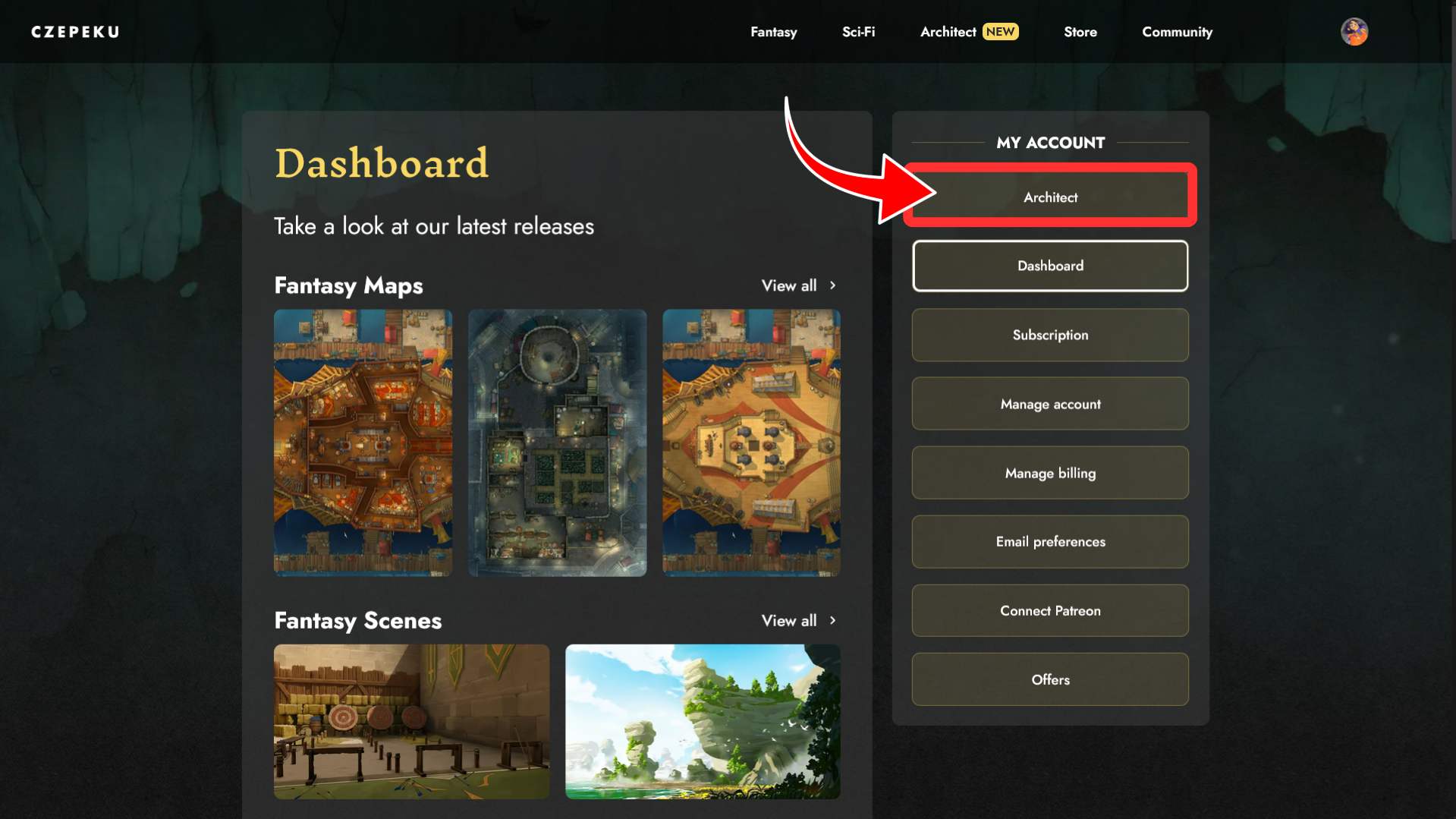
Alternatively, go to Manage Account, then select Architect from the sidebar on the right.
Using Architect to Make Maps
Start Screen
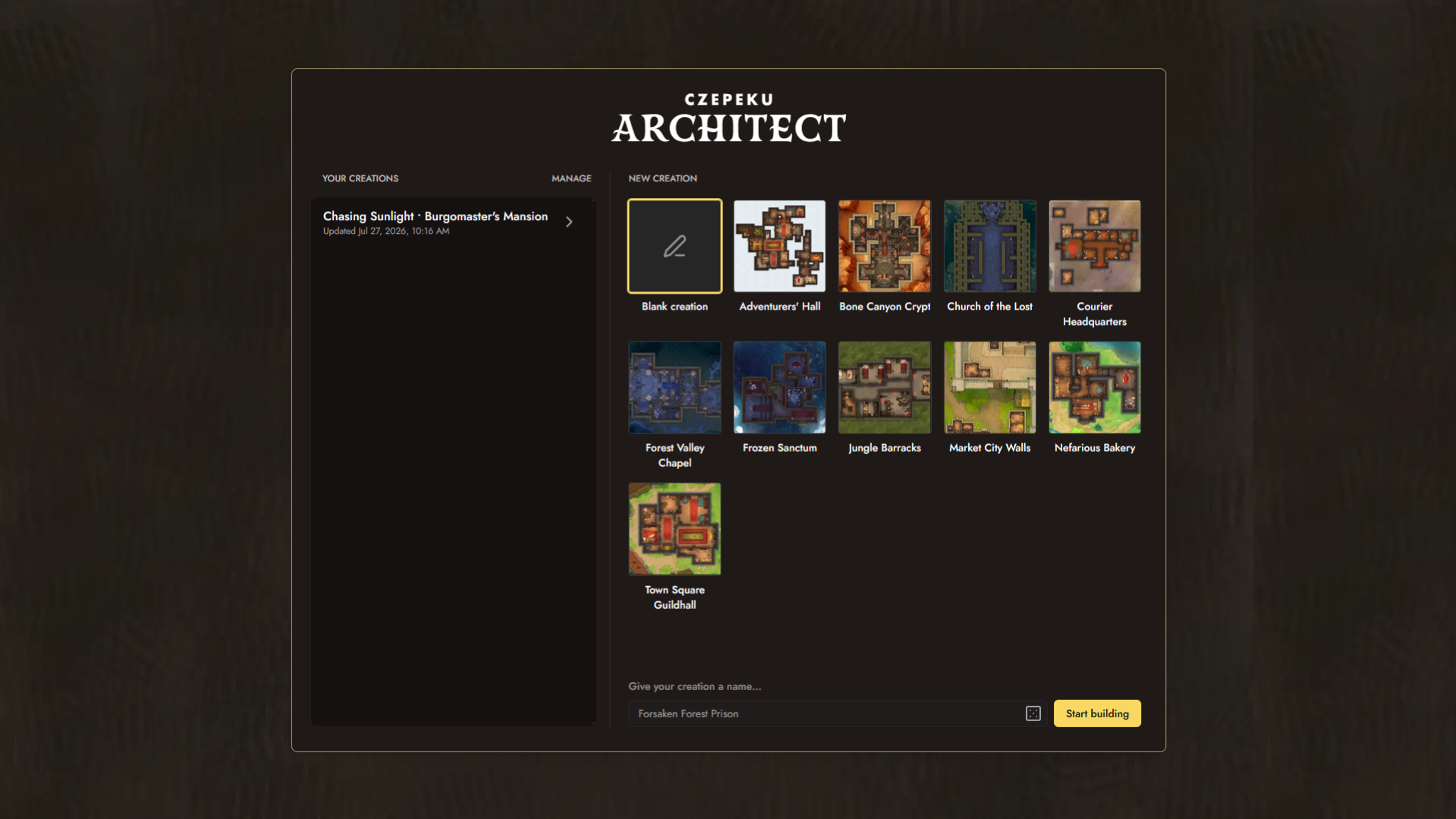
When you open Architect, you’ll be able to choose a preset layout to jump straight into editing, or click on Blank Creation to start with a blank canvas.
Presets are a great shortcut if you want a solid base to customize from, while starting fresh gives you full control over your creation.
Sidebar
This is home to your room library, floor and wall settings, lighting, and background options.
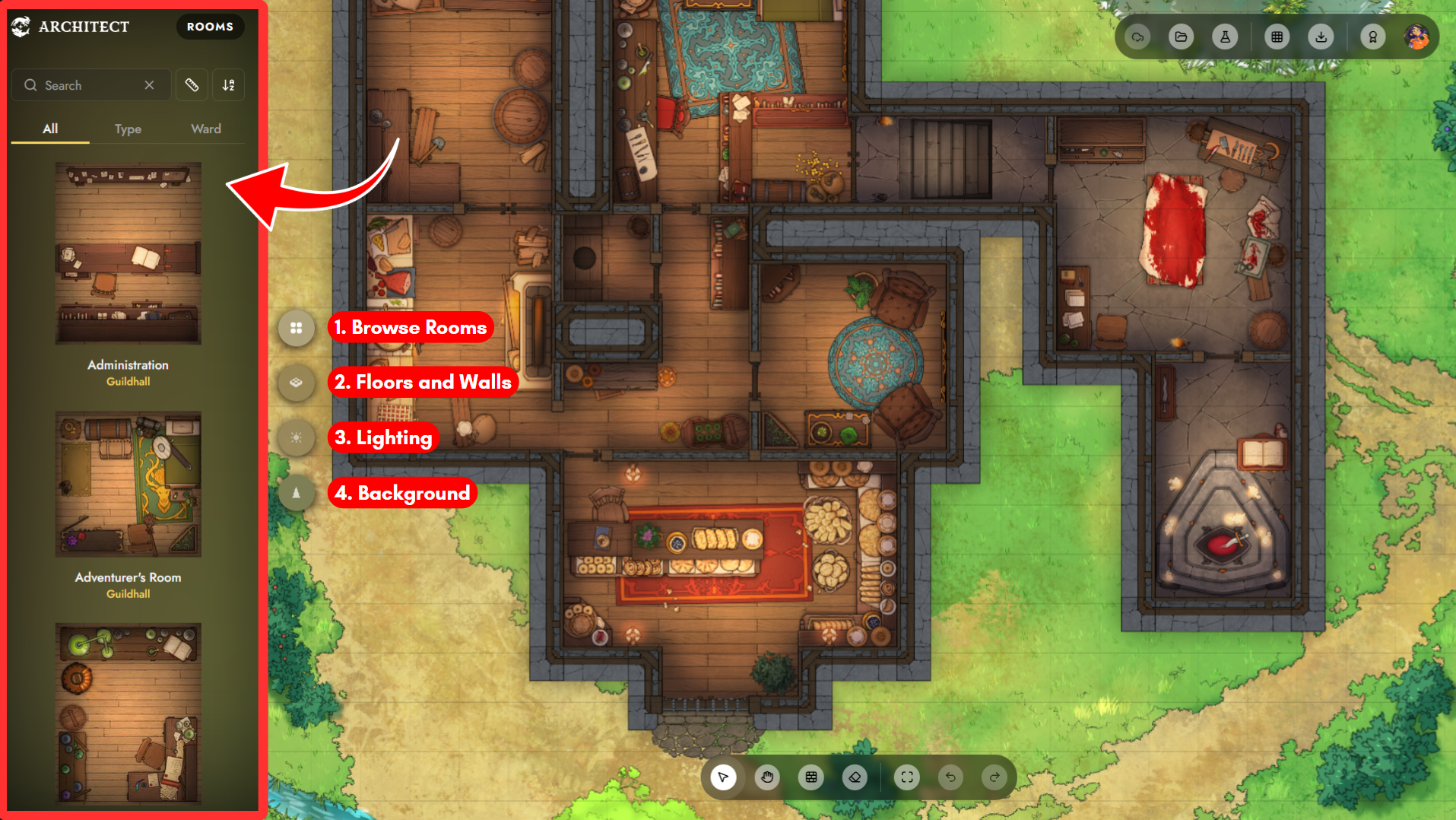
1. Rooms
Here is a library of all the rooms you can add to your map. You’ll be able to browse through your available rooms in the following ways:
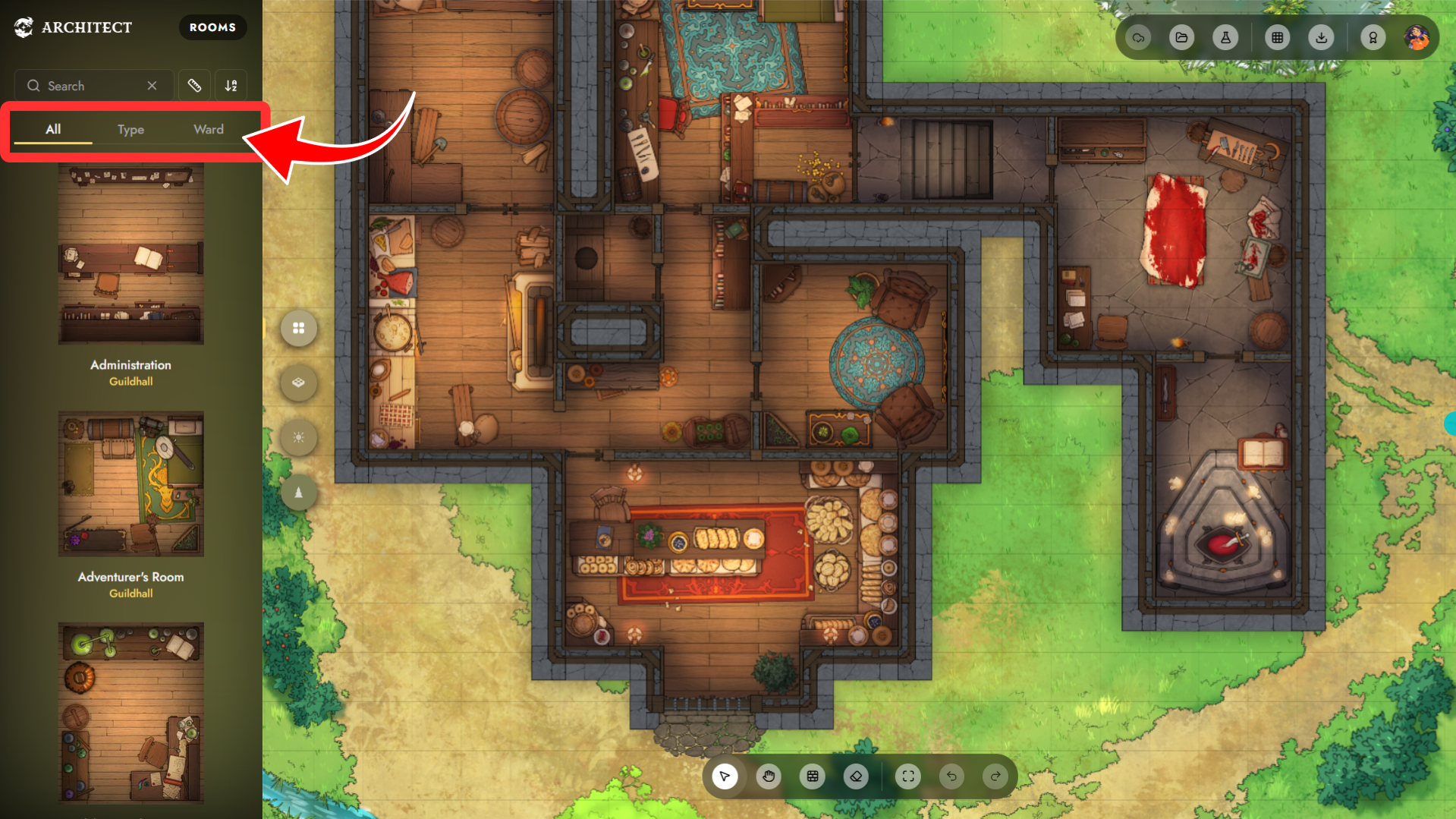
- Sort by All, Type, or Ward — Group rooms based on type (such as bedrooms, hallways, etc.) or by ward (such as inns, guildhalls, academy, etc.)
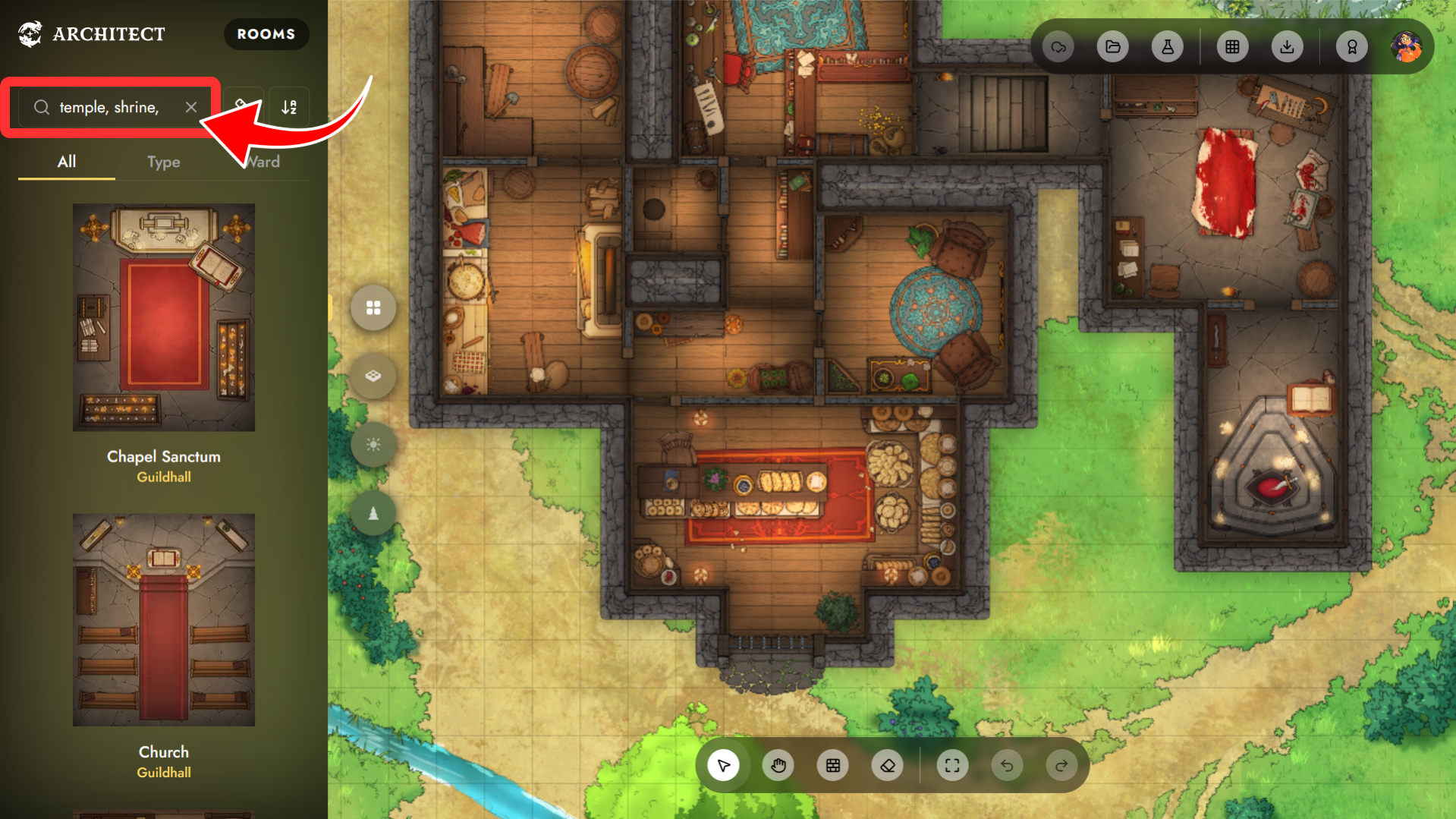
- Search — Look up a specific room by name, or by tags, such as magic, bar, or temple.
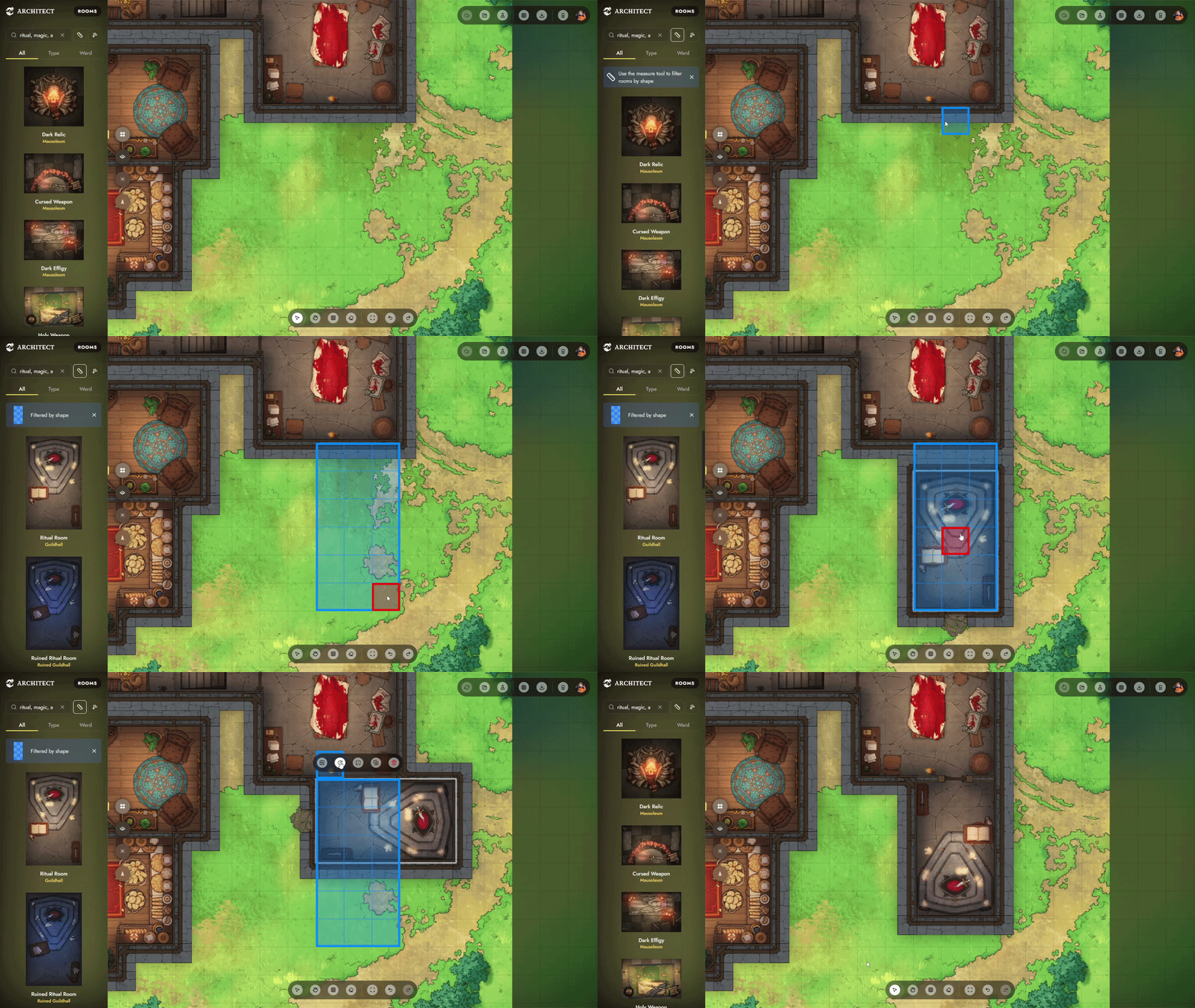
- Filter by Shape — Draw a shape directly onto the map, and Architect will give you rooms that match its shape and size. Great for fitting new rooms into a structure you’ve already built, without having to resize or rebuild anything.
- Sort — Order your results by name or by size.
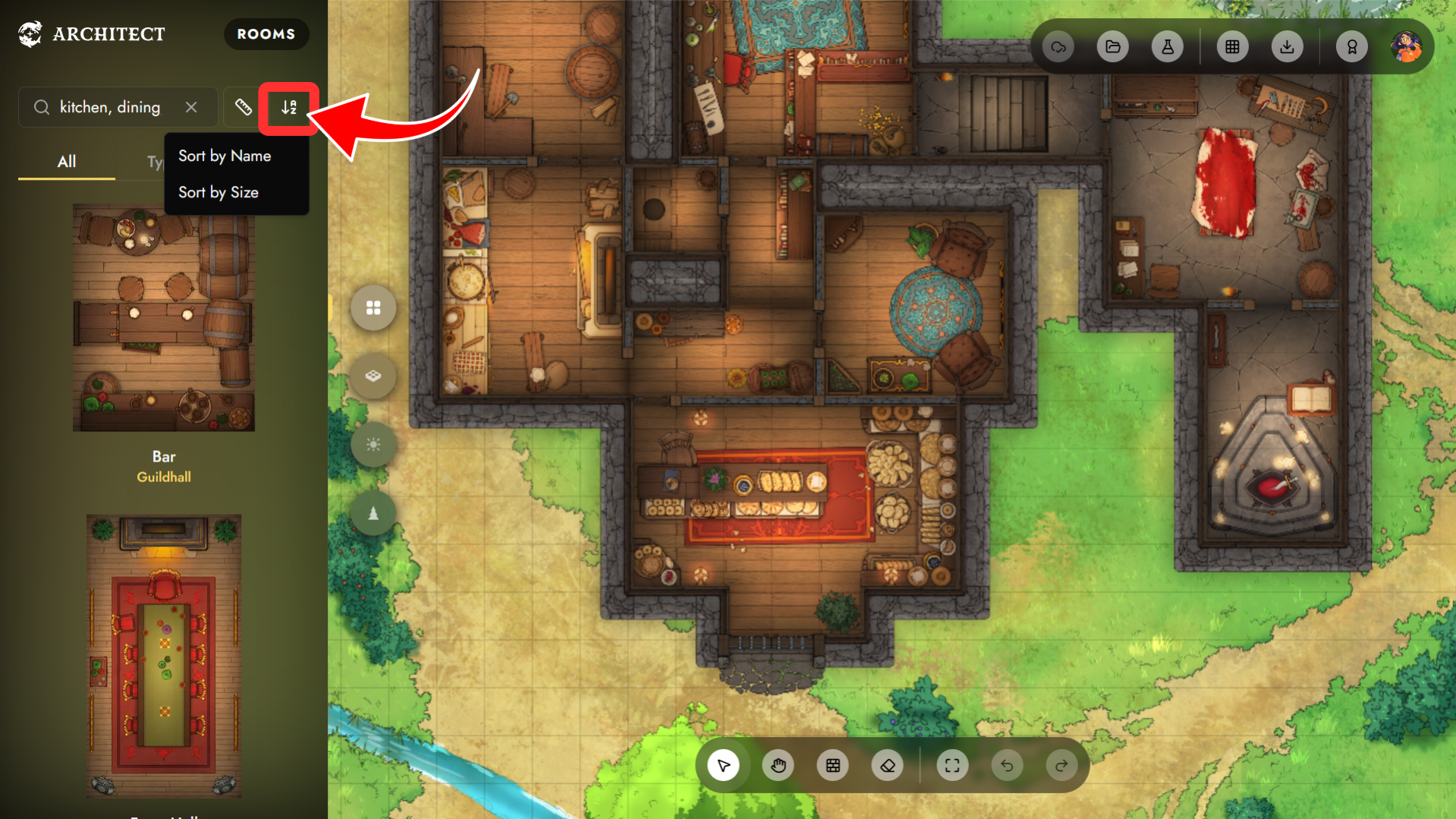
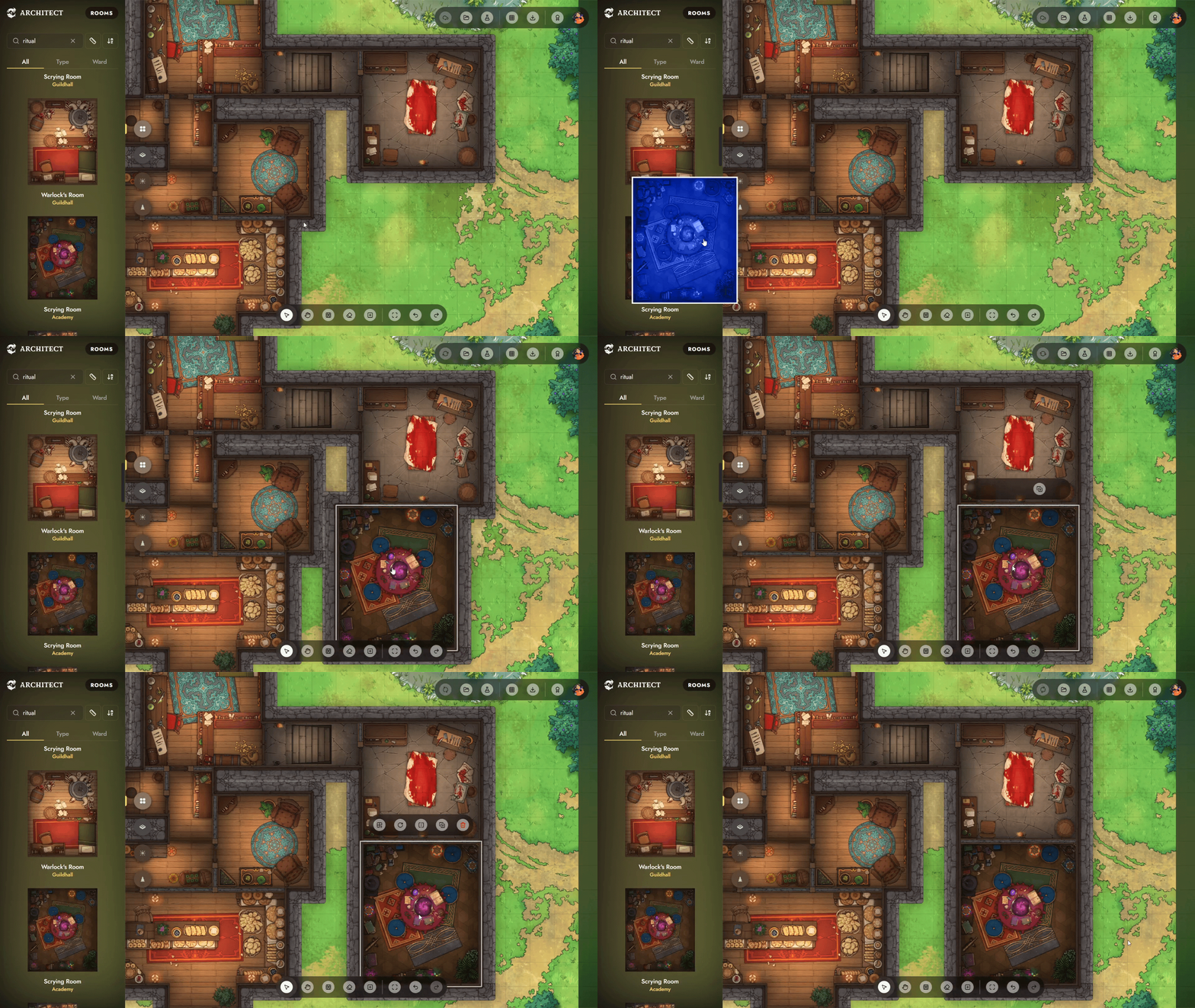
You can drag rooms straight out of the sidebar and onto your map. Once placed, you can edit them further with the room toolbar, or connect them using the Build tool—we’ll get to both of these in a second.
2. Customizing Floors and Walls
Floors
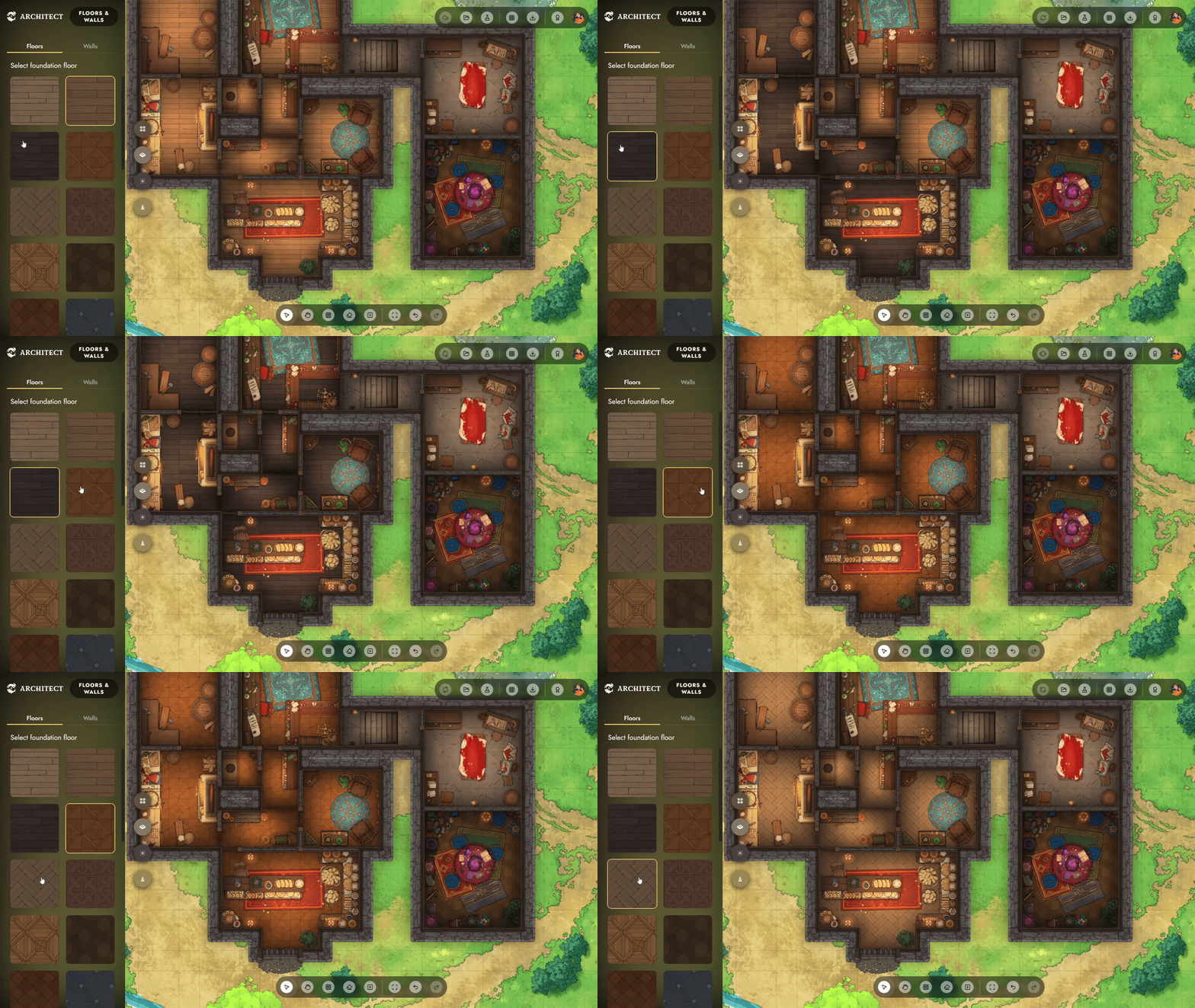
- Foundation Floor — This is the default floor underlying your entire building. Changing it updates every room still set to default. To change it, click anywhere on the map outside a room to bring up the Foundation Floor menu.
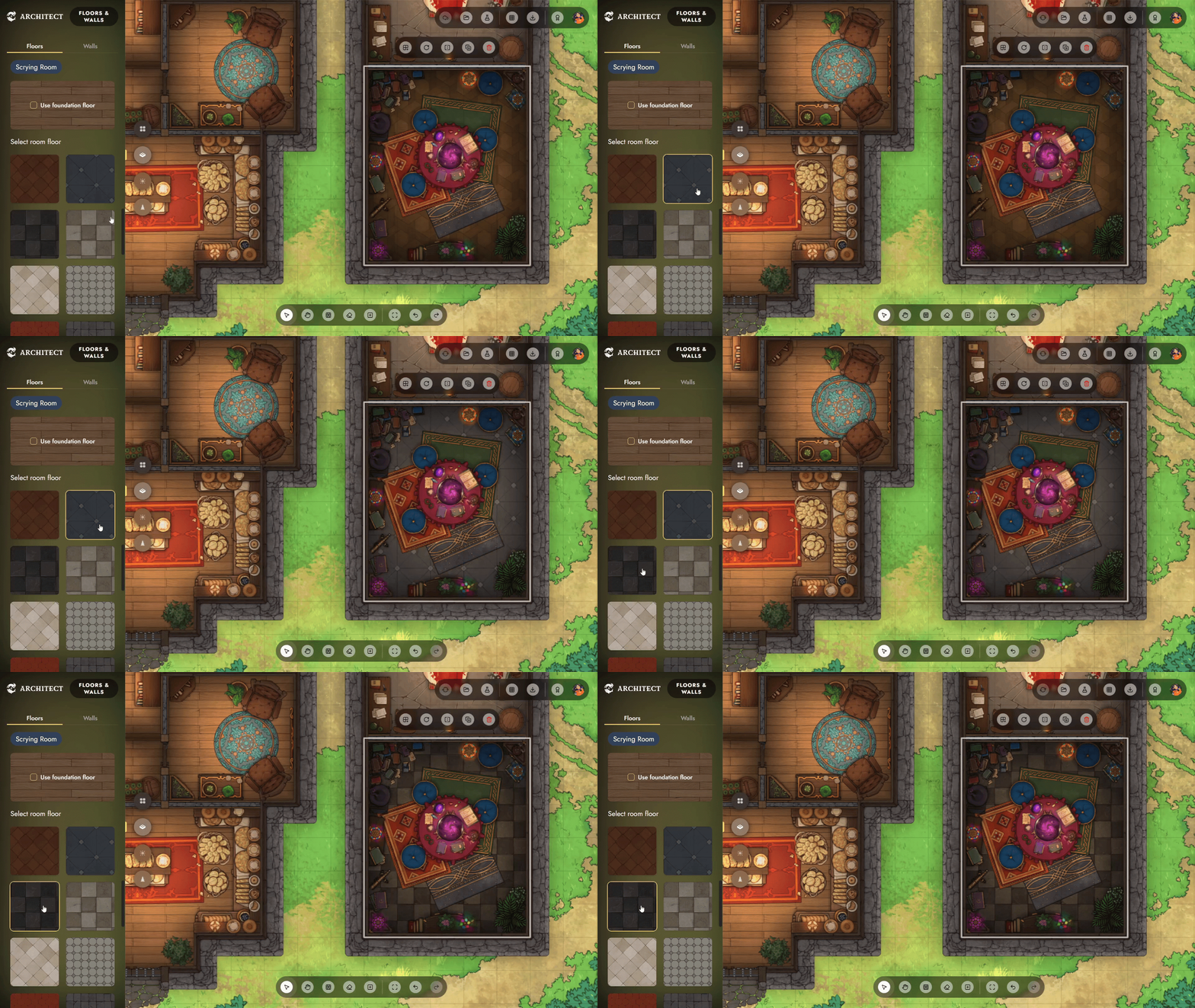
- Room Floors — Beyond the foundation, you can assign a floor style to specific rooms one at a time. Click any room to select it, then choose a new floor for it. Alternatively, you can also check the Foundation Floor box to set it back to the default.
Walls
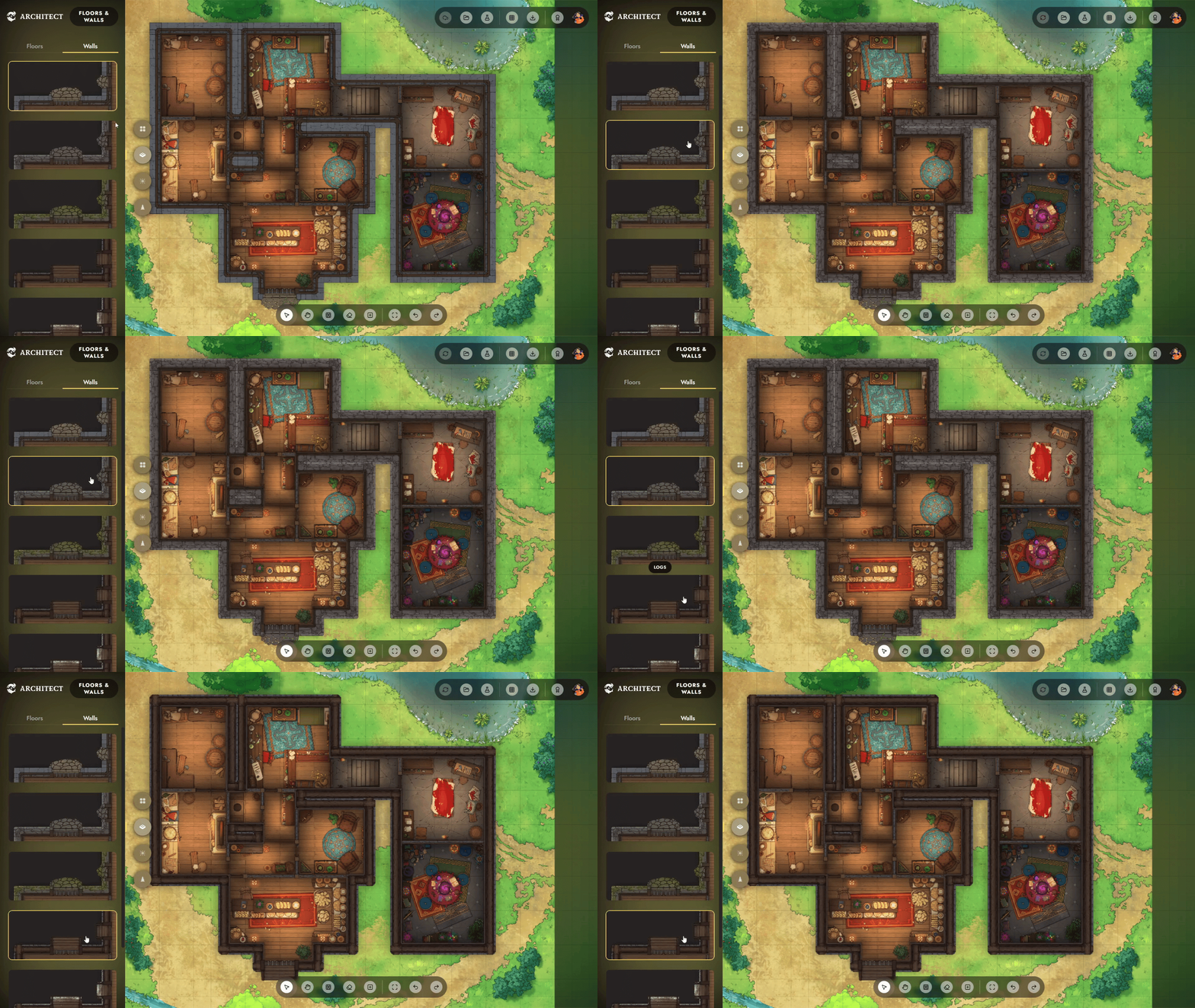
- Room Walls — Choose from a variety of wall styles.
3. Lighting
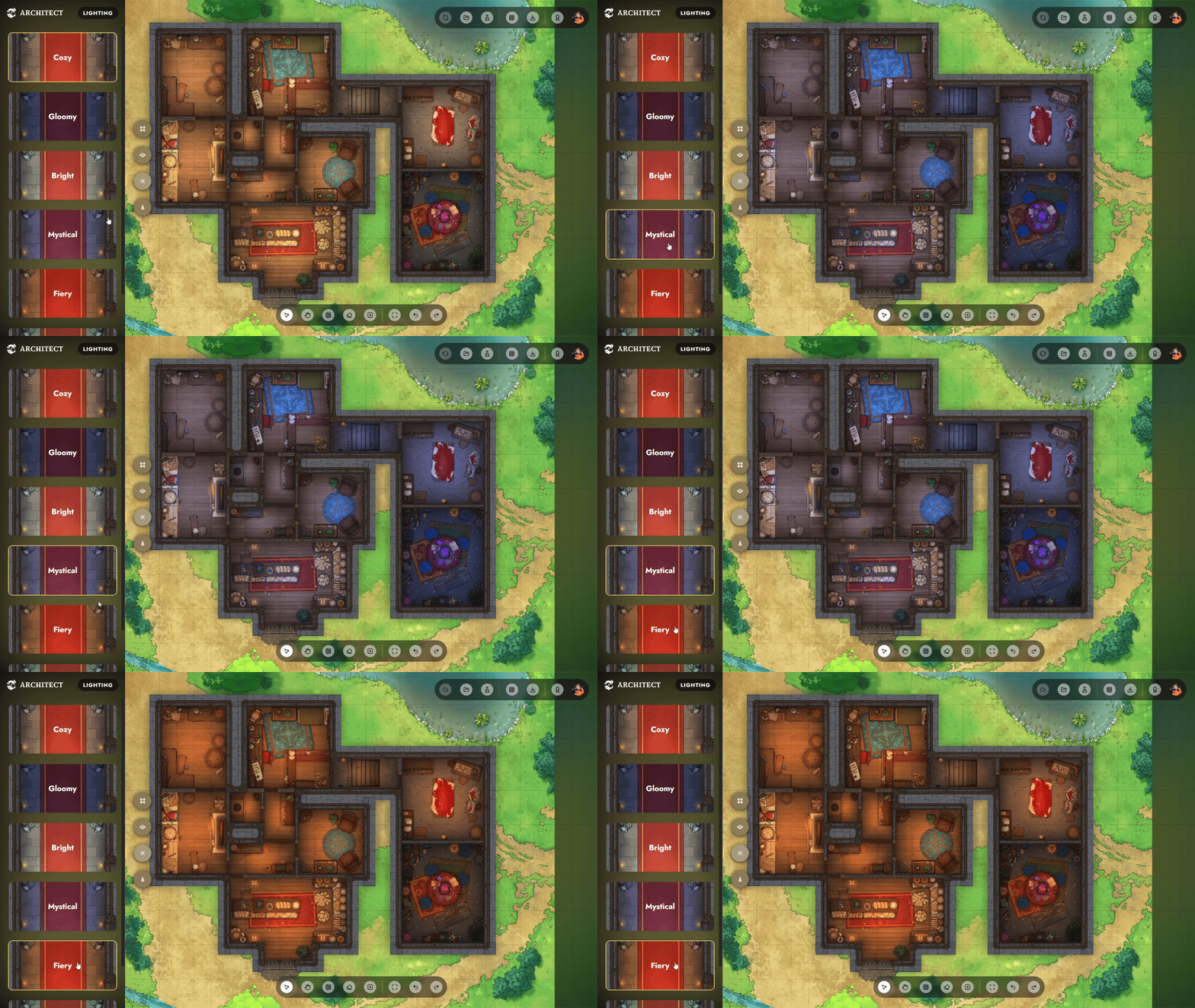
Choose from a range of lighting styles across your map to set the mood.
4. Background
Set the tone for your map with a background. You can choose between the two options below, or skip a background entirely and export an image of just your structure.
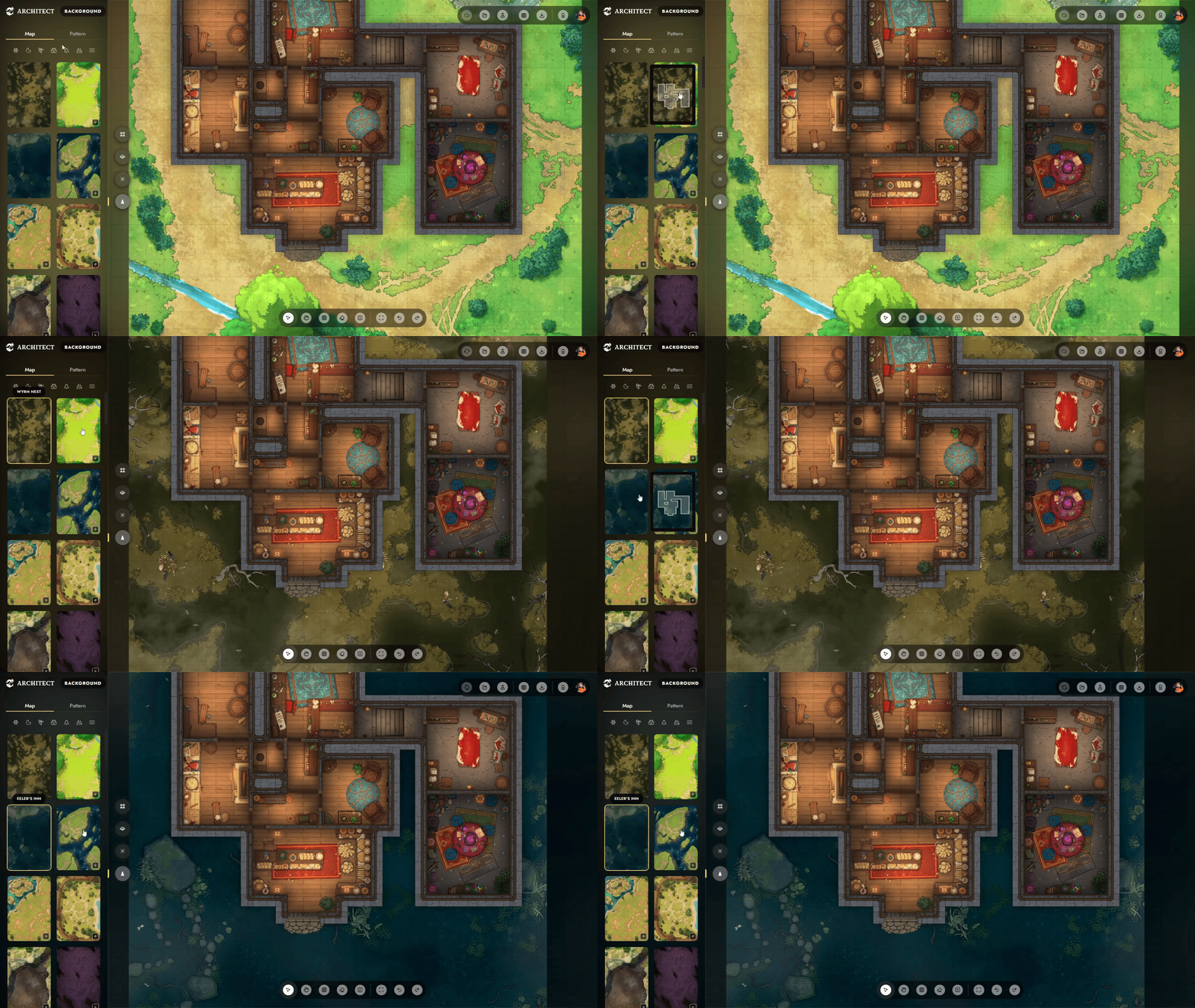
- Map — Choose a Czepeku map as your background
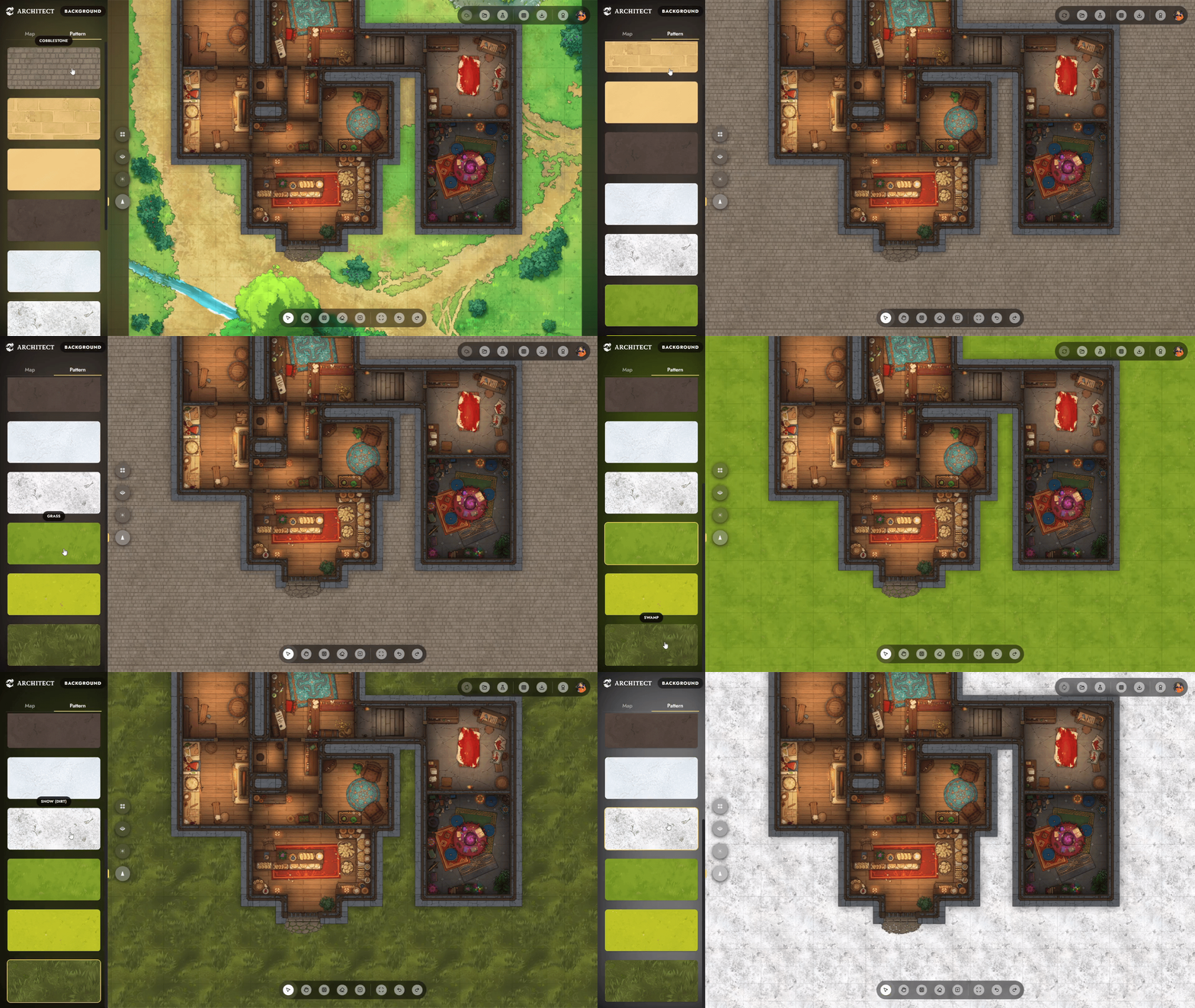
- Pattern — Choose a simpler patterned background instead, such as cobblestone, snow, or grass.
Building Toolbar
These are quick-access tools for navigating and editing your map. Each tool’s hotkey is labelled right over the icon, so you can jump between them quickly as you work.
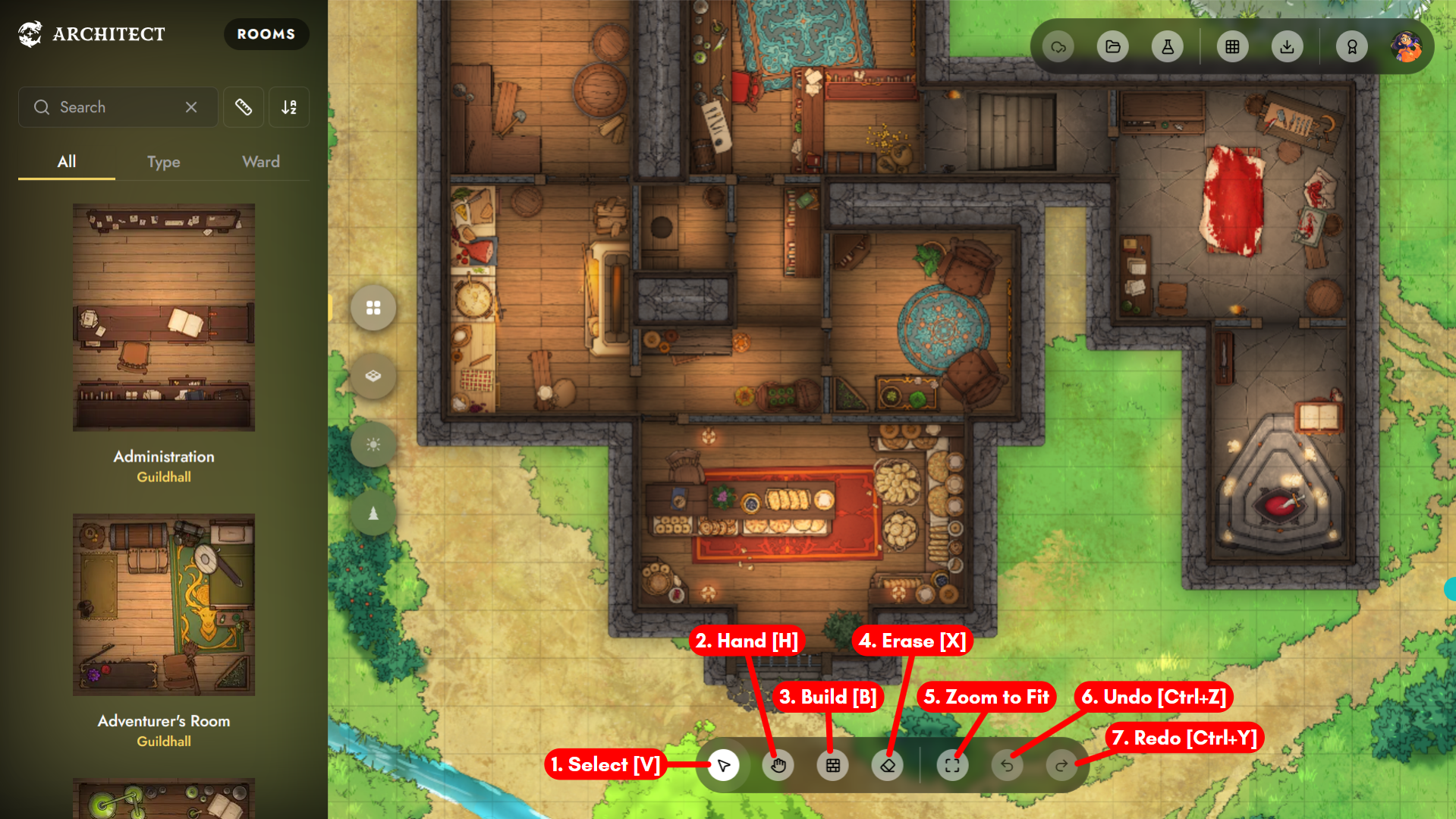
1. Select [V]
Click to select any room on the map for editing.
2. Hand [H]
Move around without selecting rooms. You can also hold the middle mouse button or right-click, and drag, to pan around while using any other tool.
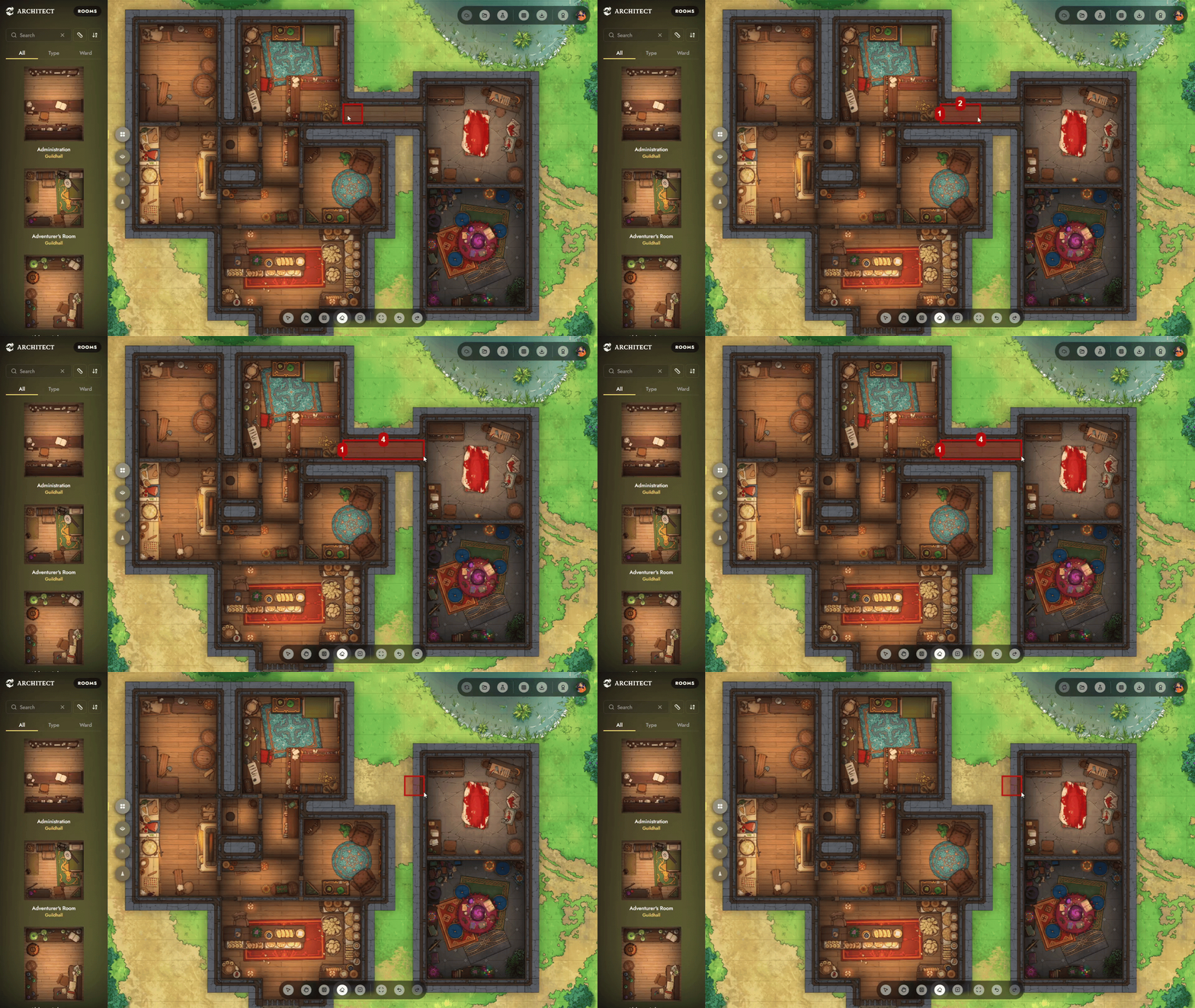
3. Build [B]
Draw new rooms, or hallways between rooms. This will use the foundation floor by default.
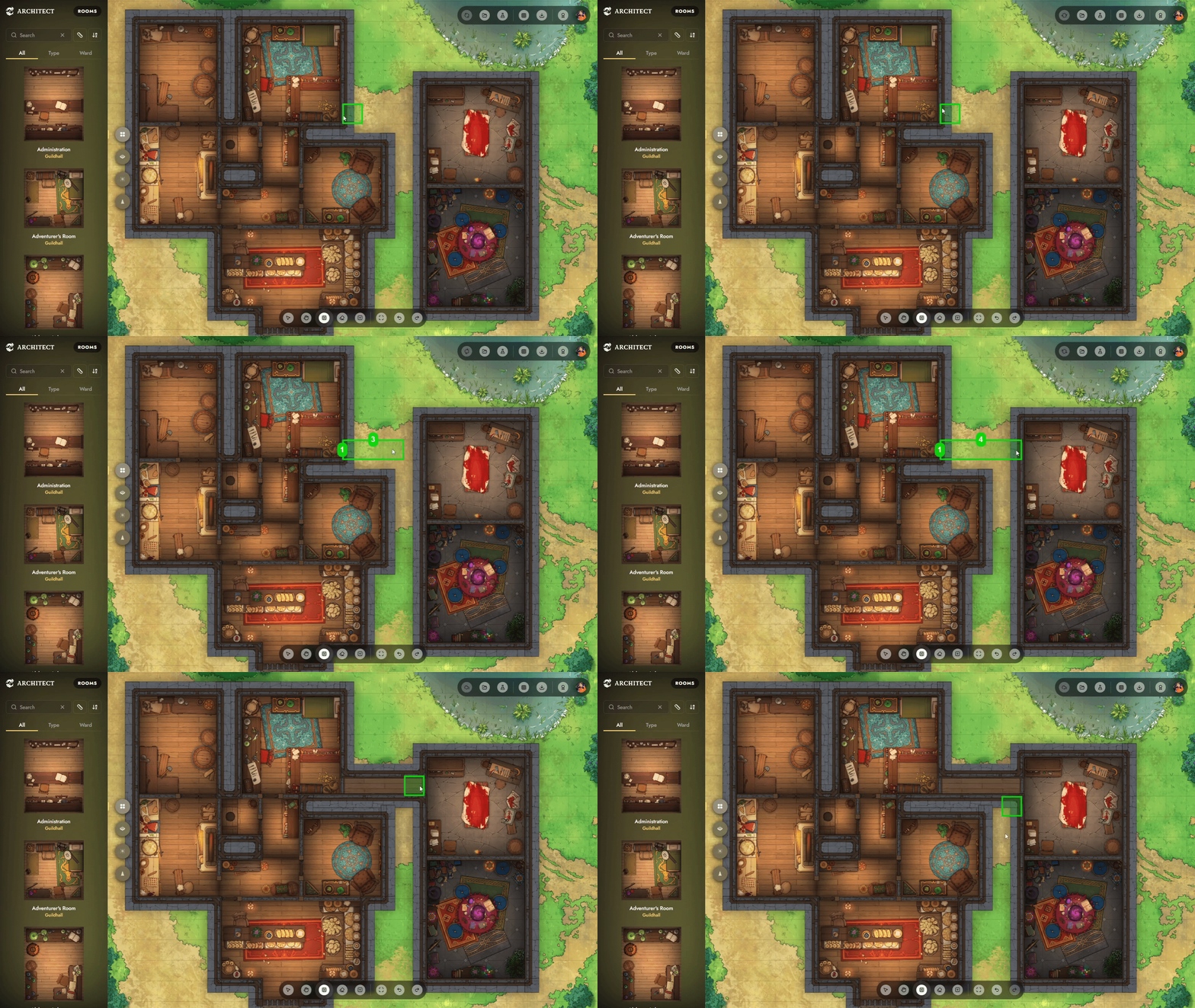
4. Erase [X]
Erases rooms. Note that you can only erase parts of rooms that you have built yourself, and not pre-built rooms.
5. Zoom to Fit
Snap the view to fit your entire map on screen.
6/7. Undo [Ctrl+Z] and Redo [Ctrl+Y]
Step backward or forward through your recent changes.
Room Editing
Select any room on your map, and a room toolbar will pop up with editing options for it.
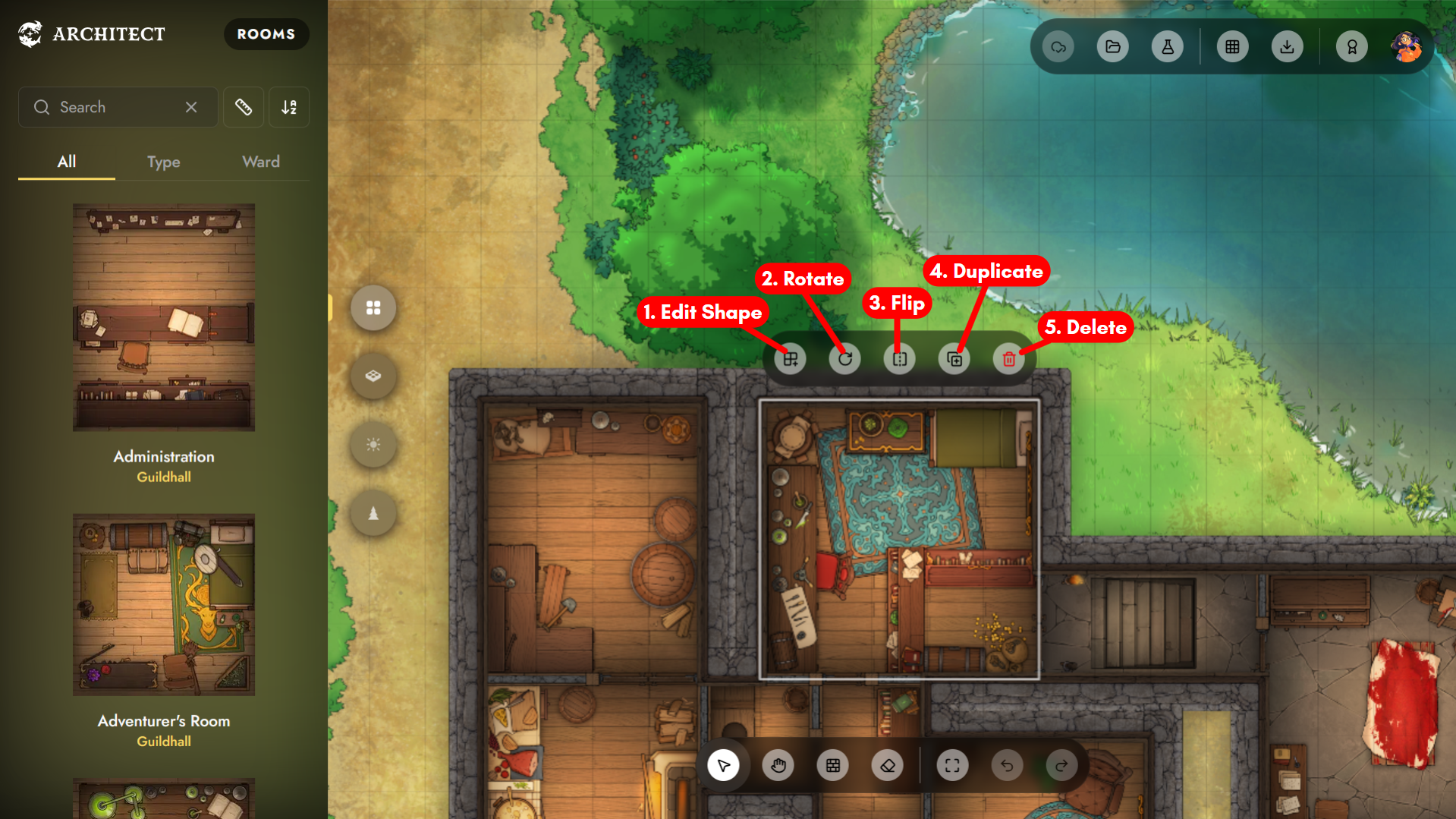
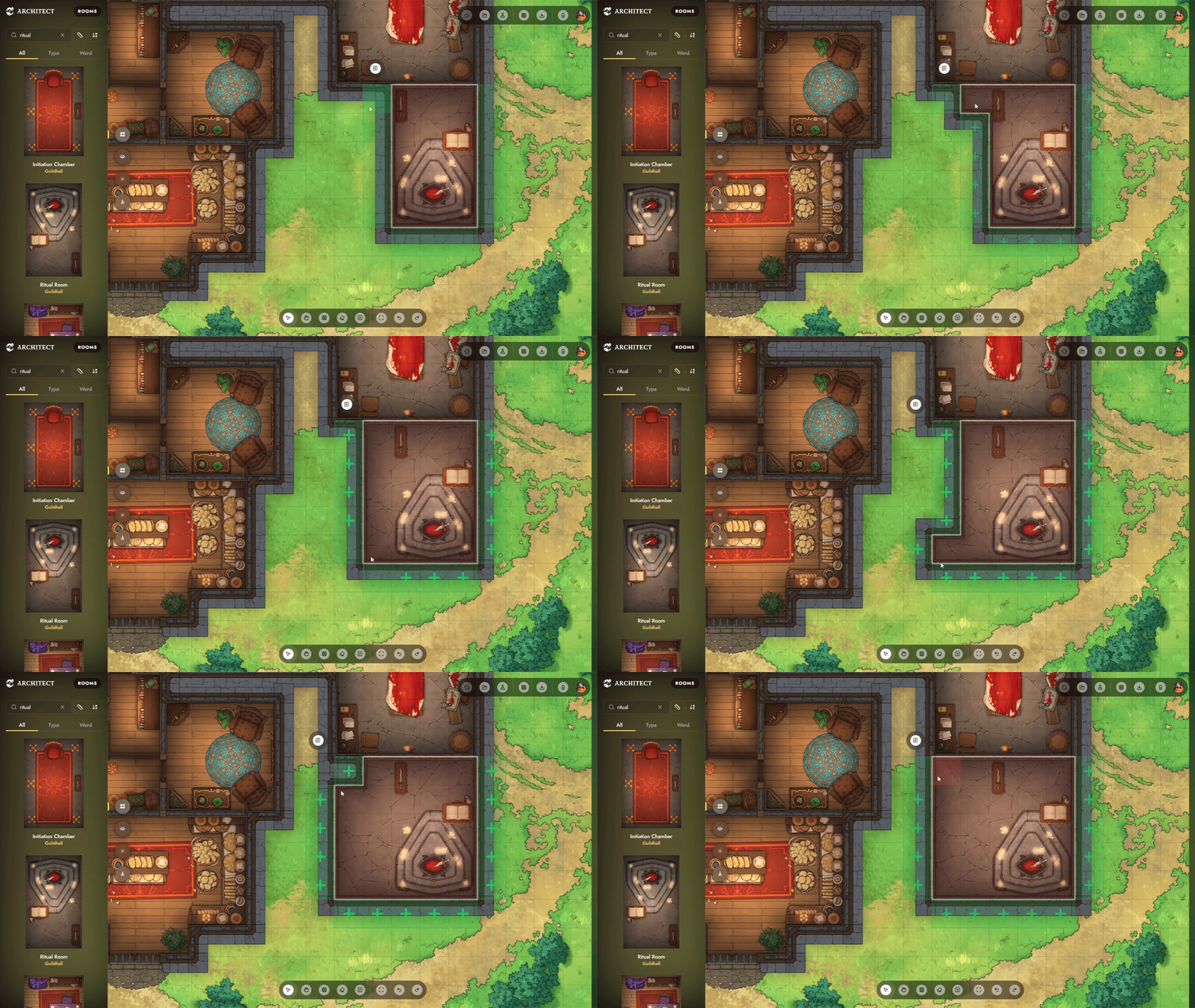
1. Edit Shape
Add or delete parts of the room’s shape.
2. Rotate
Rotate the room 90° clockwise.
3. Flip
Mirror the room across the vertical axis.
4. Duplicate
Drag the duplicate icon and drop it anywhere to create a copy of the room.
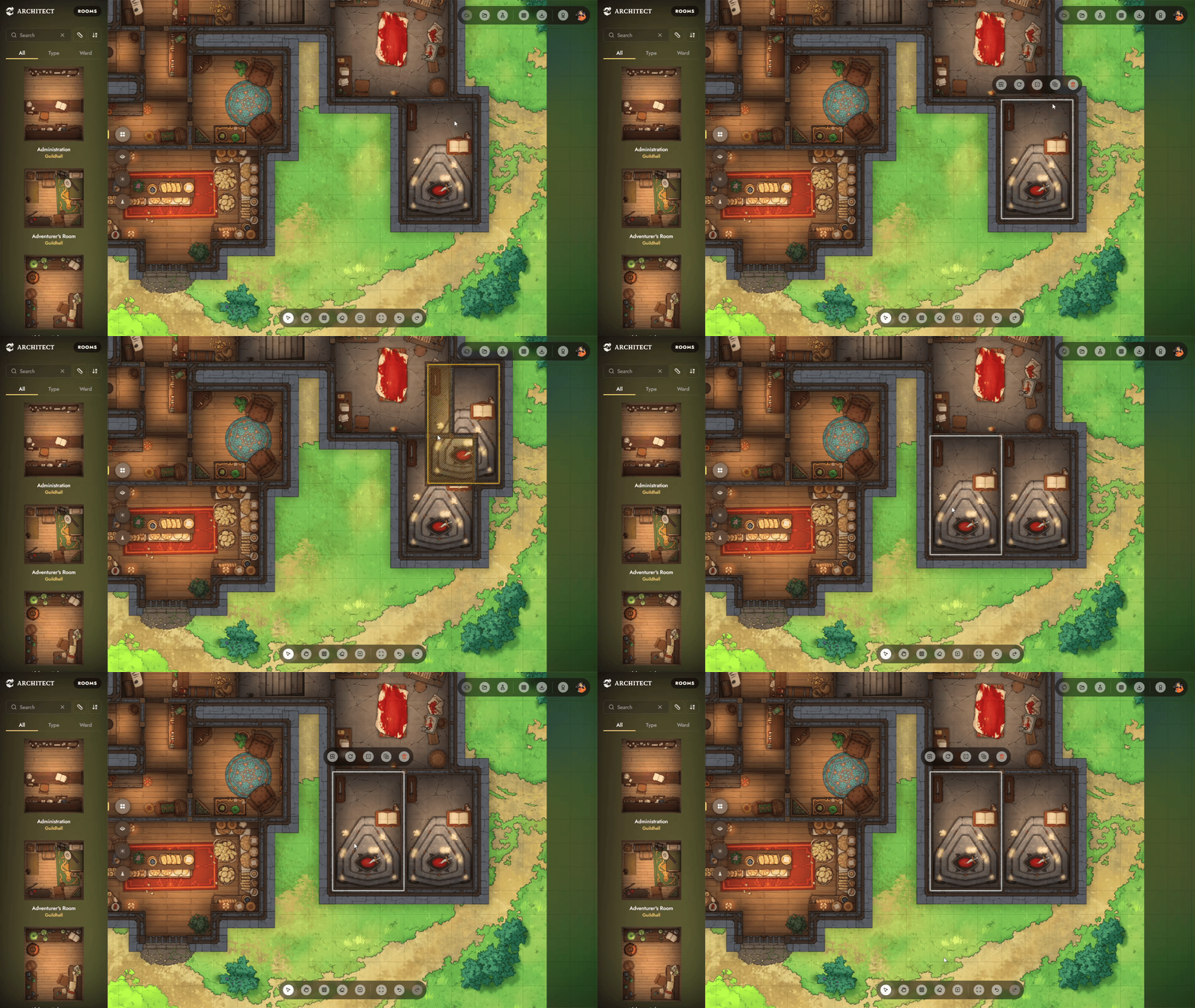
5. Delete
Remove the room from your map.
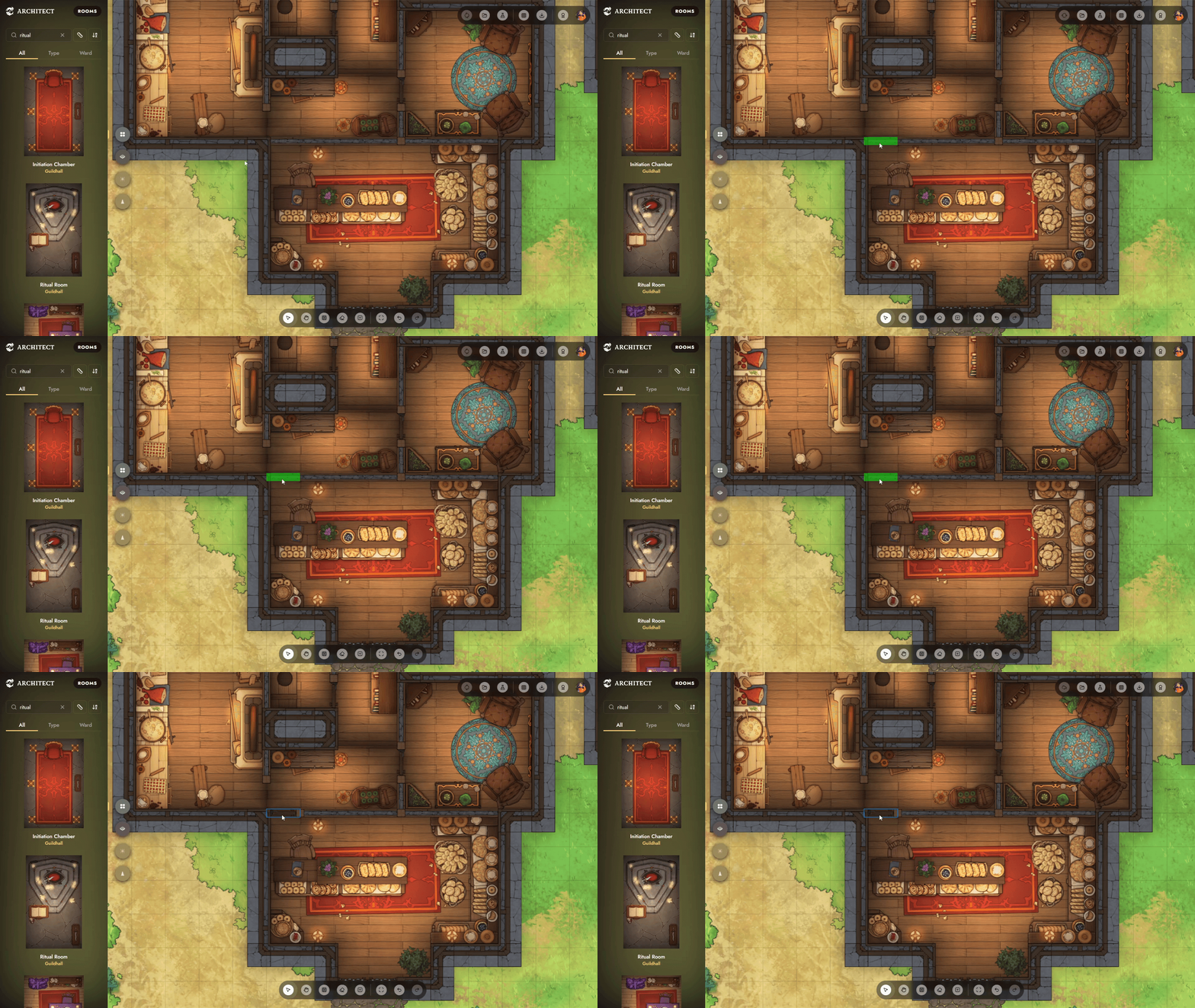
Adding Walls and Doors
Click any segment of wall to cycle through walls options: add a door, remove the wall, or restore the wall.
Settings Bar
The settings bar is home to your grid, export, and account tools.
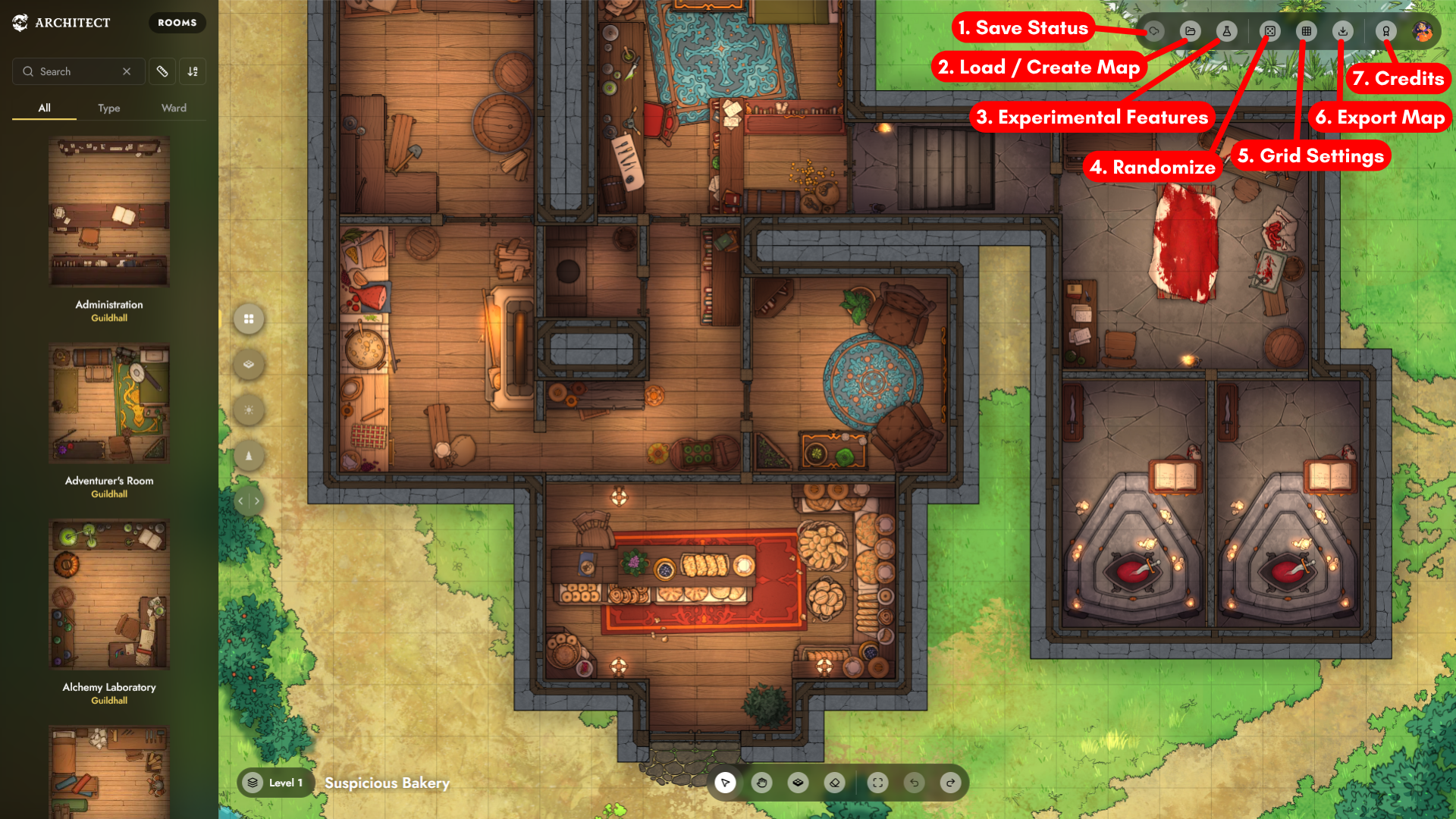
1. Save Status
Shows the current save status of your map.
2. Load/Create Map
Load up a different map, or start a brand new one.
3. Experimental Features
Try out new features we’re still working on.
4. Randomize
Start with a random layout. Let our algorithm populate the workspace based on prompts like size, wards you'd like to include, tags to prefer or exclude, and floor options.
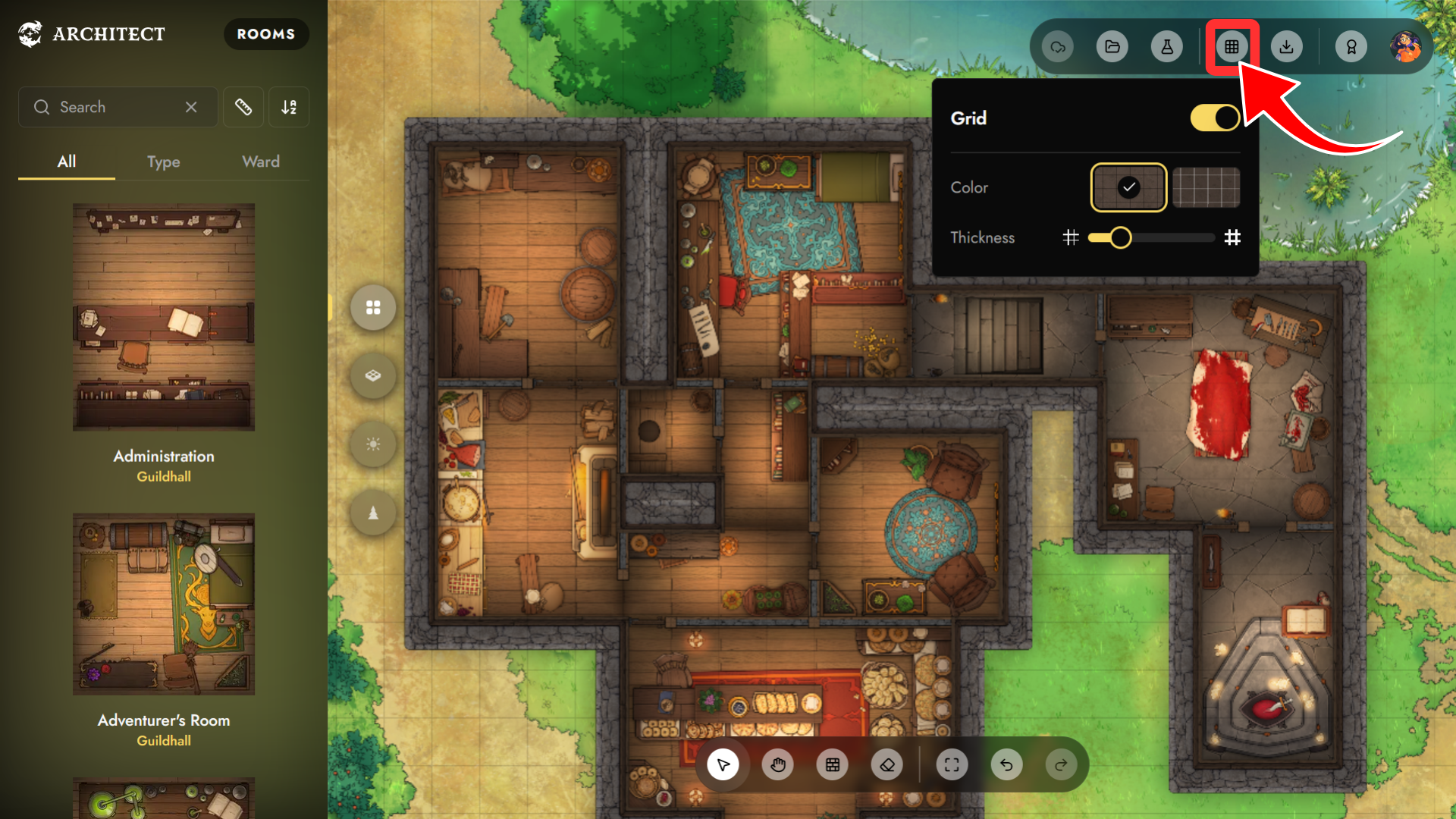
5. Grid Settings
Toggle the grid overlay on or off. You can also adjust the thickness and color to fit your map.
6. Export Map
Export and download your finished map. Before exporting, you can hide the background for a transparent map, or choose to export with or without the grid, as well as adjust the grid settings.
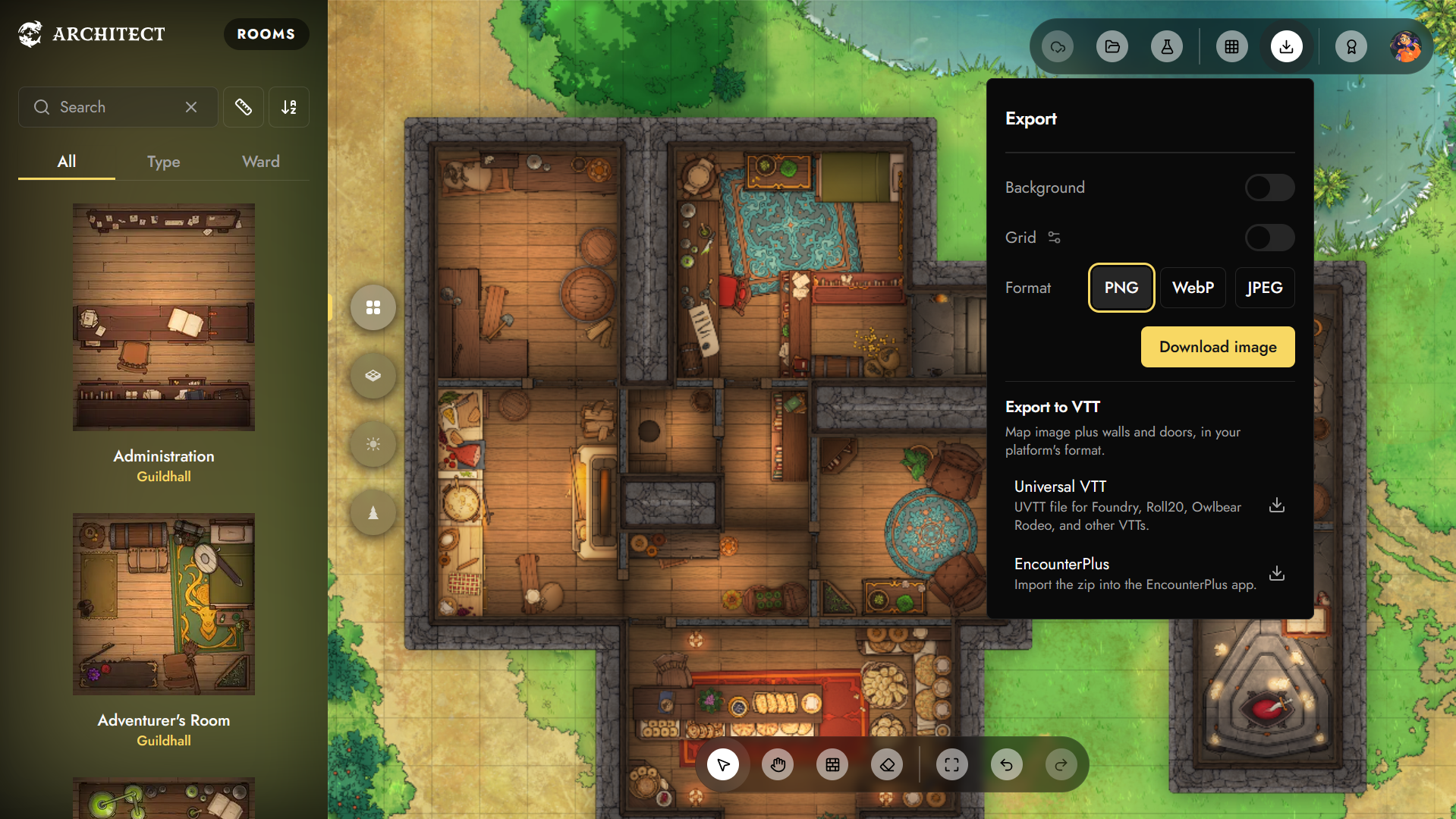
You can export your creation as PNG, WebP, or JPEG. You can also export as a UVTT file for use in your VTT of choice. Once you’ve exported your UVTT file, here’s how to load it into each platform:
- Using UVTT Files in FoundryVTT (Coming Soon)
- Using UVTT Files in Roll20
- Using UVTT Files in Owlbear Rodeo
- Using Map Files in EncounterPlus
7. Credits
A thank-you to the generous Kickstarter backers who helped make Architect a reality. Your support means the world to us!